
The Internet connection speed options are the following:
- Super 300M: 300Mbps download / 30Mbps upload
- GigaMax 1000M: 1Gbps download / 50Mbps upload
Yes, you can upgrade your Internet plan online or visit a Cablenet store.
Cablenet services are installed following delivery of service from the Cablenet network to the roof of your apartment building or house. Services will be connected and equipment installed at your home’s first TV installation outlet.
- Download the Plume App
- Get the Plume app from the Apple Store or Google Play
- Search using the word "HomePass".
- Install and launch the Plume HomePass® app.
- Create Your Plume Account
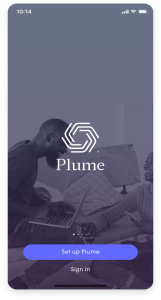
- Choose "Set up Plume".
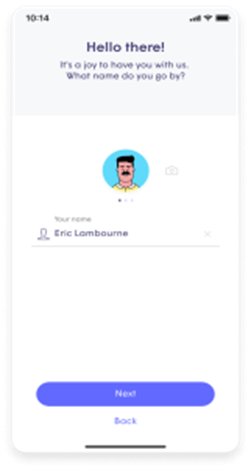
- Enter your name and email to create your Plume account.
Note: Make sure that your email account and device are registered in Region Europe. If not, you will not be able to verify your account. For assistance, please contact us at 130.
- Set Your Password
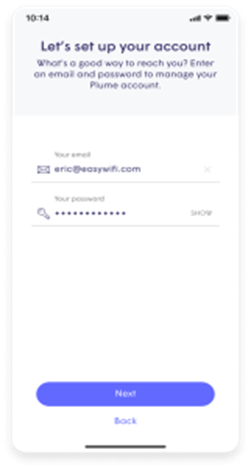
- Choose a password. It must be at least eight characters long.
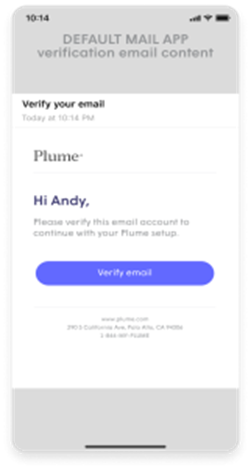
- Verify Your Email
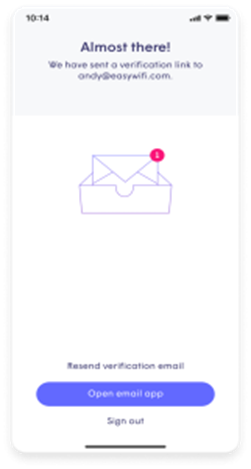
- Check your email and verify the email account that will be associated with your new Plume account.
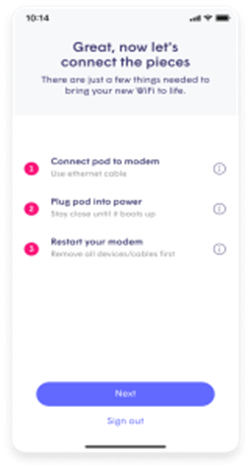
- Set Up Your Plume Pod
- Connect your Pod to the LAN1/WAN port of your Cablenet modem, using the included ethernet cable.
- Connect your first Pod to a power source. If the Power LED on the front of the Pod does not light, press the Power On/Off switch.
- Wait for the Pod’s Power LED to light solid green.
- Press “Other setup options” and scan the QR code at the bottom of your Pod (or enter the serial number).
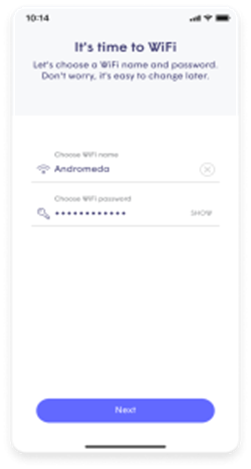
- Set-up your new WiFi
- Enter your desired WiFi name and password.
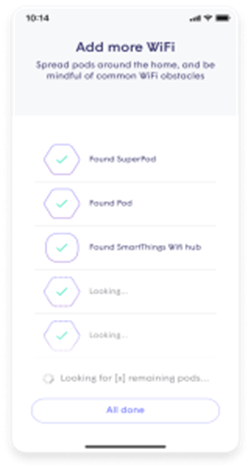
- Add Pods
- Place the second Pod close to the first Pod. Connect the second Pod to a power source.
- Wait for the second Pod power LED to light solid green.
- Go to your Plume HomePass® app home screen and select "View Network". Wait until the second Pod appears on your screen.
- Place your Pod(s) in the household's desired location(s) and ensure that the signal is optimal through the Plume HomePass® app.
- For assistance follow the on-screen tips for adding the Pod to your network.
- Repeat steps to add more Pods to your Plume HomePass® account.
- Enable Notifications
- Enable notifications to stay aware of your home network activity.
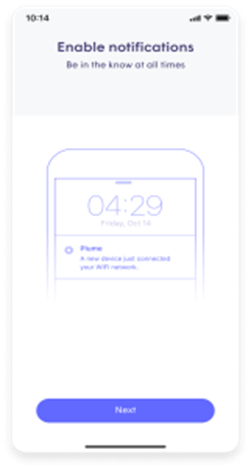
- Join the New WiFi Network
- The Plume app will prompt you to join the new WiFi network.
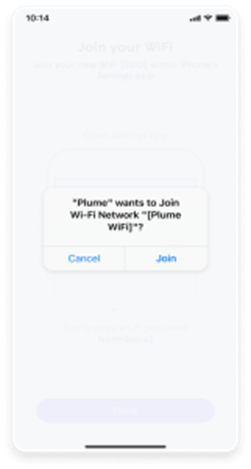
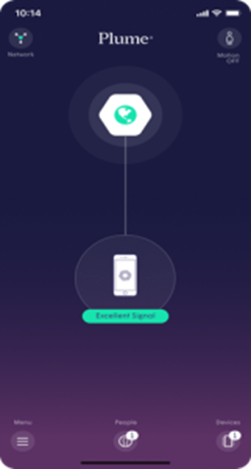
- Complete the Setup
- After allowing Plume to join your network, you’ll be taken to the home screen.
- Over the next 24 hours, your new Plume WiFi network will optimize for the best performance for your connected devices.
If you have the Plume Homepass® app, follow these 3 simple steps: 1. Go to the Settings option and then the Adapt option. 2. Select the type of network whose access code you wish to change (eg guests, internet only) 3. Select Edit and change the access code. If you don’t have the Plume Homepass® app call the Customer Call Centre on 130 to instantly change your WiFi access code.
15 working days is the maximum length of time, provided that conditions allow it.
You can find the termination fees here.
You can have check your Cablenet webmail wherever you are, by clicking here. Important: This email service will be discontinued on December 31, 2026. To keep your emails, please transfer or forward the contents of your Cablenet email account, before that date. For step-by-step instructions on how to move your emails to another email account you own, click here.
The email service will be discontinued on December 31, 2026, after which you will no longer have access to your account or your emails. To keep your messages, you must transfer or forward them to another email account you own before the discontinuation of the service. You can find step-by-step instructions by clicking here.
Fixed Telephony
Yes, you can keep your existing fixed telephony number by following the number portability process.
There is no charge for transferring your existing number.
To proceed with the transfer, you will need to provide a copy of your most recent telephone bill and present your ID card.
For more information contact us at 130 or visit a Cablenet Store.
For the Fixed Telephony options provided by Cablenet, click here.
There is no charge for transferring your existing telephone number to Cablenet’s network.
Yes. If you do not already have a fixed telephony number, Cablenet can assign a new fixed telephony number to you when you subscribe to a fixed telephony service.
Yes, you can have a telephone line in more than one room, provided that the necessary internal wiring is available.
Cablenet’s telephone service is delivered through the modem, while the distribution of cabling to additional telephone points within your premises is the responsibility of the subscriber.
With the Unlimited Fixed Telephony add-on for €5.99/month, you enjoy truly unlimited local calls to all fixed and mobile numbers in Cyprus, along with free basic telephony features.
Please note that unlimited calls do not include international calls, calls to local mobile networks while roaming abroad, or calls to special numbers (e.g. 118XX, 900XXXXX, 77XXXXXX, and short codes).
For all other call charges, please refer to our Fixed Charge Rates page.
The following features are included at no extra cost with Unlimited Fixed Telephony. To activate or deactivate a feature, enter the relevant code directly from your handset.
Note: Replace [Telephone Number] with the full destination number where applicable.
Call Forwarding
Forward your incoming calls to another number:
| Feature | Activate | Deactivate |
| Forward all calls | *21*[Telephone Number]# | #21# |
| Forward when the line is busy | *22*[Telephone Number]# | #22# |
| Forward when you do not answer | *24*[Telephone Number]# | #24# |
Caller ID Blocking
Hide your number when making calls:
| Feature | Activate | Deactivate |
| Hide your number for a single call | Dial #31# before the number you are calling | N/A |
| Hide your number on all outgoing calls | *27# | #27# |
Call Blocking
To activate or deactivate either of the following call-blocking services, contact us on 130:
- Blocking of calls to numbers beginning with 900 and 909
- Blocking of international calls (numbers starting with 00)
Yes, there are!
Additional Telephony Services
You can subscribe to the following services, for an additional €3.55/month:
- Do Not Disturb — silence incoming calls when you need quiet.
- Call Waiting — get notified when a second caller is trying to reach you while you are on a call.
- Caller ID during Call Waiting — see who the second caller is.
- Conference Call — speak with more than one person at once.
- Wake-up Call — schedule an automated reminder call.
- Anonymous Call Rejection — automatically block calls from withheld numbers
Personal Number (700XXXXX)
The Personal Number 700XXXXX is a single, easy-to-remember number assigned to you. When someone dials your 700XXXXX number, your call is automatically forwarded to up to 3 fixed or mobile phone numbers of your choice across Cyprus — for example your home phone, mobile, and office.
The service works with both Cablenet and non-Cablenet telephone numbers and is available for €2.50/month plus a one-off installation fee of €5.95.
Second Telephone Line
A second telephone line is available for €2/month.
To subscribe to any of the above services, call 130 or visit a Cablenet store.
The following services require an active subscription of €3.55/month. Once subscribed, activation and deactivation are done directly from your handset.
Services and codes
| Service | Activate | Deactivate |
| Do Not Disturb | *26# | #26# |
| Call Waiting | *43# | #43# |
| Conference Call | *44# | #44# |
| Reminder Calls | *55* | #55# |
| Anonymous Call Rejection | *28# | #28# |
Note: Caller ID during Call Waiting is automatically enabled and disabled together with the Call Waiting service.
To subscribe to any of these services, call 130 or visit a Cablenet store.
Plume HomePass
Plume is powered by the cloud, which means it can adapt to real life in real-time, ensuring that every room and every device has a reliable and fast connection now and into the future. Plume HomePass® is continuously learning about the user’s internet needs. It performs advanced self-optimizations and allocates capacity to the devices that need it most. And it gets better each day!
When you get onboarded with the Plume HomePass® service, you will also download the HomePass® on your mobile device. The App lets you see which devices are accessing the Internet and how much they’re uploading or downloading. You can block and unblock specific devices from accessing the Internet and delivers daily reports on your home WiFi signal strength and network activity. With this App you take control of your WiFi network.
- Download the Plume App
- Get the Plume app from the Apple Store or Google Play
- Search using the word "HomePass".
- Install and launch the Plume HomePass® app.
- Create Your Plume Account
- Choose "Set up Plume".
- Enter your name and email to create your Plume account.
Note: Make sure that your email account and device are registered in Region Europe. If not, you will not be able to verify your account. For assistance, please contact us at 130.
- Set Your Password
- Choose a password. It must be at least eight characters long.
- Verify Your Email
- Check your email and verify the email account that will be associated with your new Plume account.
- Set Up Your Plume Pod
- Connect your Pod to the LAN1/WAN port of your Cablenet modem, using the included ethernet cable.
- Connect your first Pod to a power source. If the Power LED on the front of the Pod does not light, press the Power On/Off switch.
- Wait for the Pod’s Power LED to light solid green.
- Press “Other setup options” and scan the QR code at the bottom of your Pod (or enter the serial number).
- Set-up your new WiFi
- Enter your desired WiFi name and password.
- Add Pods
- Place the second Pod close to the first Pod. Connect the second Pod to a power source.
- Wait for the second Pod power LED to light solid green.
- Go to your Plume HomePass® app home screen and select "View Network". Wait until the second Pod appears on your screen.
- Place your Pod(s) in the household's desired location(s) and ensure that the signal is optimal through the Plume HomePass® app.
- For assistance follow the on-screen tips for adding the Pod to your network.
- Repeat steps to add more Pods to your Plume HomePass® account.
- Enable Notifications
- Enable notifications to stay aware of your home network activity.
- Join the New WiFi Network
- The Plume app will prompt you to join the new WiFi network.
- Complete the Setup
- After allowing Plume to join your network, you’ll be taken to the home screen.
- Over the next 24 hours, your new Plume WiFi network will optimize for the best performance for your connected devices.
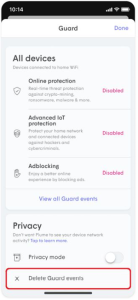
All Plume members have the right to be forgotten. HomePass supports two different types of data deletions. Delete security event data If you’d like to just remove items from your list of blocked events from either Guard or Content Access:
- In the HomePass app, open the More menu.
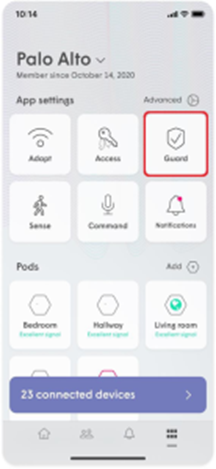
- Select the Guard option.
- On the bottom of the Guard settings page, you will find the Delete security events button.
- Simply tap the button and confirm that you would like to clear the data.
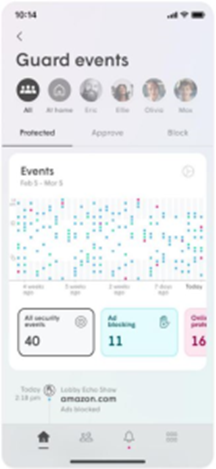 Note that once deleted, this data cannot be recovered
If you haven’t disabled Guard or Content Access features, more events will continue to populate the list. Just continue to repeat this process as often as you need.
Note that once deleted, this data cannot be recovered
If you haven’t disabled Guard or Content Access features, more events will continue to populate the list. Just continue to repeat this process as often as you need.
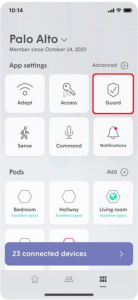
The Control™ is an unparalleled parental controls and guest access solution. Give full home WiFi access to people you implicitly trust, create custom passwords for your guests, make the internet a safer place for your family and even schedule an Internet freeze for those who need some time off.
The most common reasons for receiving false Sense Alerts when no one is in your home are:
- The Motion sensitivity may be set too high or pet mode is not enabled. If you have pets try enabling pet mode, or try turning down the Motion sensitivity to medium or low.
- If you have more than one location, alerts are sent for all locations under your Plume account. Switch your app to the other location and check the Motion Today graph to see if the events displayed in that location correspond to the alert you have received.
We strongly recommend that you use a Pod as your gateway in order to distribute the best performance across your entire home! Adding a new pod
- Plug in your Pod anywhere within your home and stay nearby.
- On the Home page, scroll down to the Adapt section.
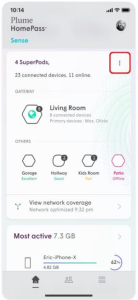
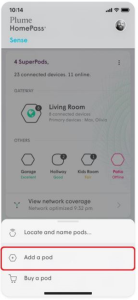
- Tap the ⋮ to open the Options Menu.
- Tap on Add a pod.
- Wait until your new pod(s) is found and select Done Adding Pods when all additional pods have been claimed.
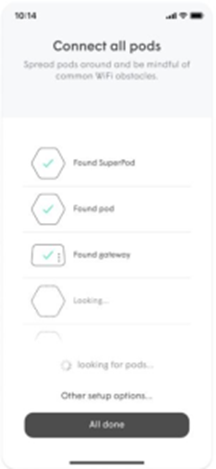
- Unplug the current gateway pod.
- If you have a modem, unplug it from the power outlet.
- Connect the new SuperPod to your modem by Ethernet cable. If it a SuperPod with WiFi 6, make sure you are using the left Ethernet port.
- Plug your new SuperPod into the power outlet. Once the SuperPod’s LED starts to slowly pulse, plug your modem back into power and wait until the LED turns off.
- You should be able to view your SuperPod and other pods in your app when the network is back online.
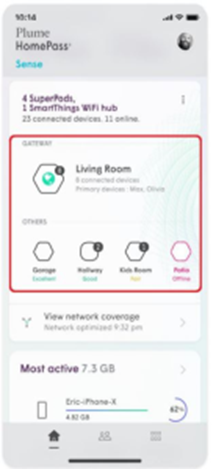
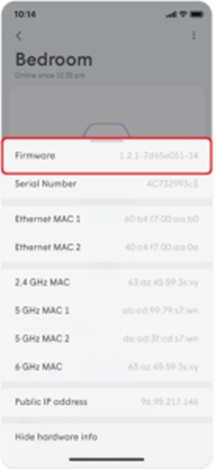
- From the Home screen, scroll down to pod list in the Adapt section.
- Tap on any pod you wish to see device information about.
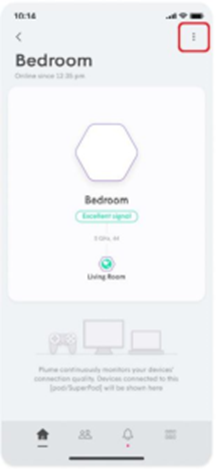
- Tap the ⋮ icon in the upper right-hand corner.
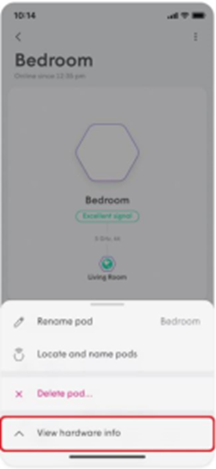
- Tap View Hardware Info. Firmware version will be the first item in the list. Please visit this link for full release notes. In addition to the firmware version, you can also view the pod’s serial number, MAC address and assigned IP address.
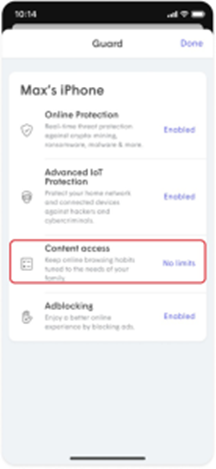
Plume’s content access feature will allow you to restrict content for a device or person. We have identified the most common content filtering categories that you can use when personalizing your online experience. When setting up content filtering for a person or device, you can enable any of the four content filtering categories:
- No limits: You can access all types of content.
- Kids appropriate: Content that is tagged as NOT appropriate for kids will be filtered and inaccessible.
- Teenager friendly: Content that is tagged as NOT appropriate for teens will be filtered and inaccessible.
- No adult content: All content tagged as adult content will not be accessible.
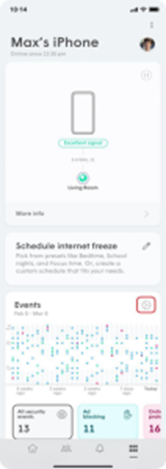
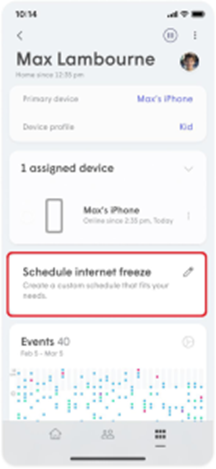
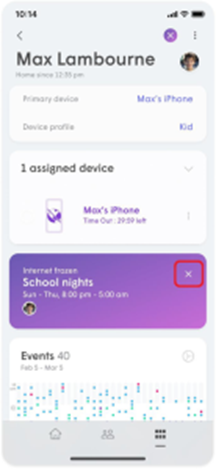
Internet Freeze allows you to easily manage how much time is spent on the internet by a device or person by using a Freeze schedule or as needed. Schedule or Turn on Internet Freeze for a device.
- Select the device in the app to access the device details page.
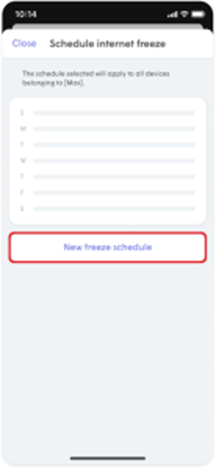
- Tap on Schedule Internet Freeze.
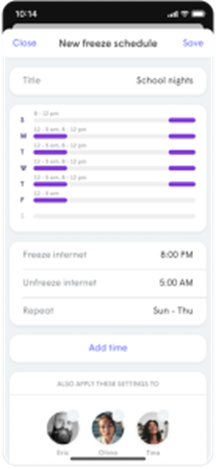
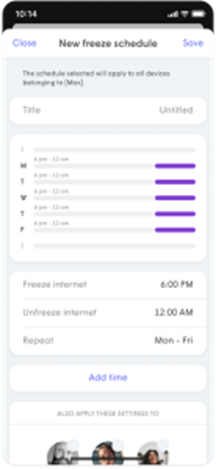
- Type in a name for this Freeze schedule.
- Tap on a day and enter the Freeze internet (start) time and Unfreeze internet (end) times.
- Choose the Repeat option if this schedule will be the same on multiple days or tap on another day to set different Freeze and Unfreeze times for that day.
- Choose a person if this Freeze schedule will be used for all of their devices.
- Tap on Save once your schedule is complete.
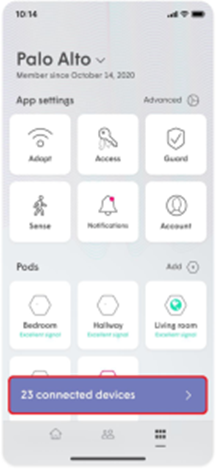
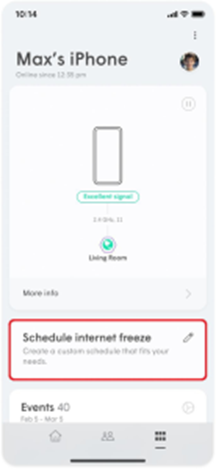
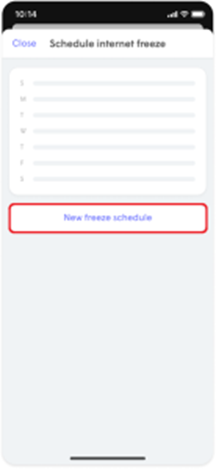
- Select the person from the People page.
- Tap on Schedule Internet Freeze.
- Type in a name for this Freeze schedule.
- Tap on a day and enter the Freeze internet (start) time and Unfreeze internet (end) times. Choose the Repeat option if this schedule will be the same on multiple days or tap on another day to set different Freeze and Unfreeze times for that day.
- Tap on Save once your schedule is complete and Apply to confirm.
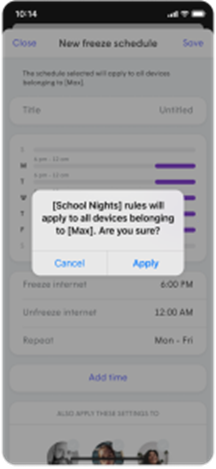
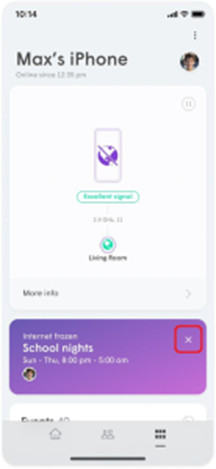
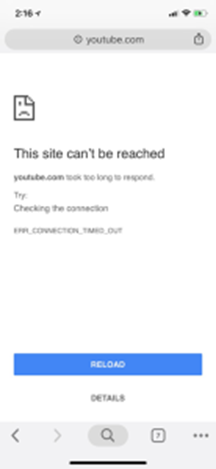
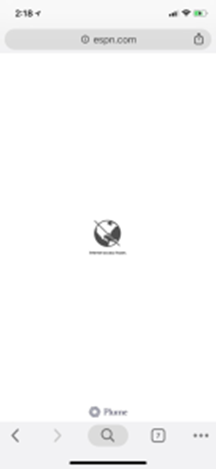
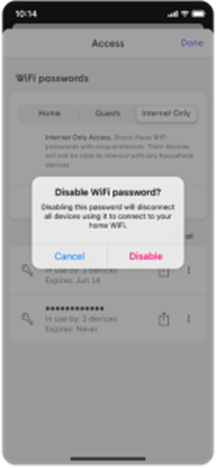
How do I disable or change a WiFi password? You can easily edit, delete, or temporarily disable a password by using the HomePass app. You can also edit the access level of any user with guest access. To suspend or control access on a device level, use the Device Freeze feature. Editing WiFi passwords
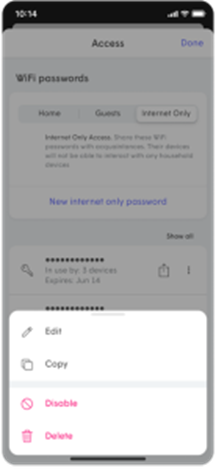
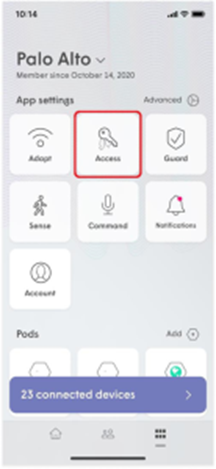
- From the More menu, tap on the Access option.
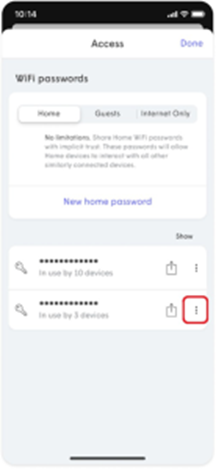
- Tap on Home, Guests, or Internet Only to access that zone’s page.
- Tap the ⋯ next to the password you want to modify.
- Choose Edit, Disable, or Delete.
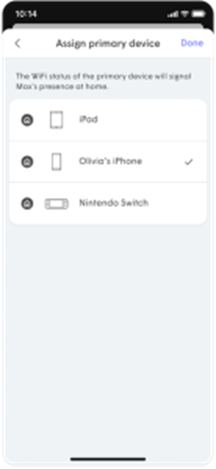
Each person can have a primary device assigned to their profile. That primary device’s connections and disconnections from the network determines if they show up as being at home, which is also important for managing Sense alerts.
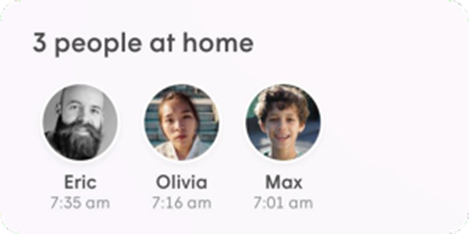
- Tap on the people icon and choose a person. Ensure the device in question is already assigned to that person.
- If a primary device has not been set, the Assign primary device notification will be shown. Tap on the notification.
- Choose a primary device and tap on Done to save.
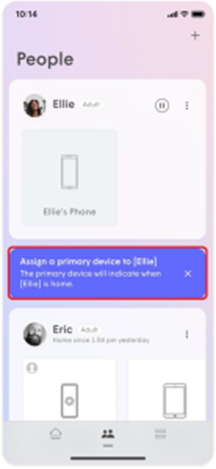
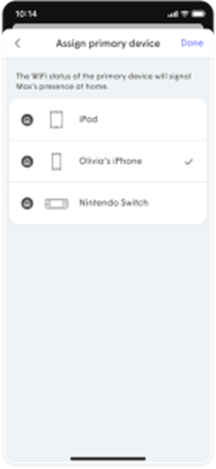
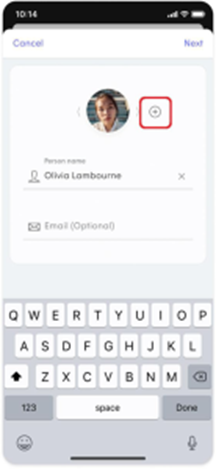
Adding people allows you to conveniently monitor and manage their WiFi access. Adding a Person
- From the People screen, tap on + button.
- Choose the Create a person option.
- Add a photo using the + , enter the Person name and Email (optional) and tap on Next.
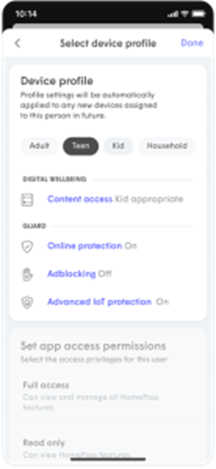
- Set their Device profile information. This allows you to control Content access as well as their Guard settings for all their assigned devices while they are connected to the network.
- Tap on Done and the person will be added to the list of people.
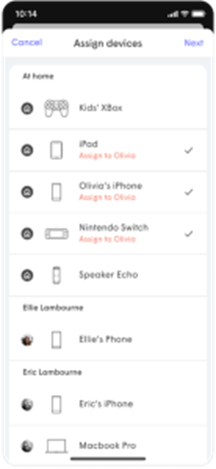
- Use the Tap to assign device option under their card. The devices you select will apply the rules set in the previous step to those devices and allow you to monitor and manage the person’s Internet usage.
- Once all device have been selected and you tap on Done, you will be prompted to assign a Primary device, which is used to determine if they are home. Be sure to choose a device that they will always take with them.
- Tap on Done once a primary device is chosen.
- Please note that creating a person using the steps above does not give them the ability to manage the network. Click here if you want to Invite a person to help you manage the network.
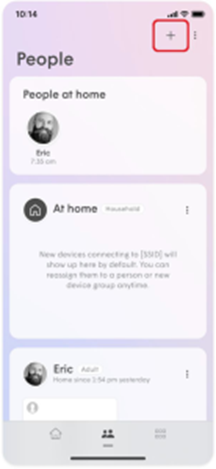
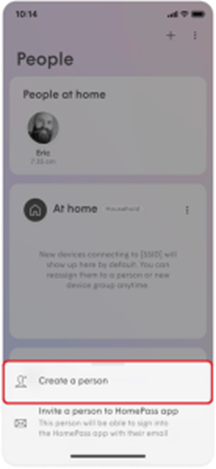
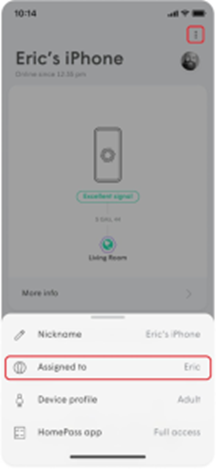
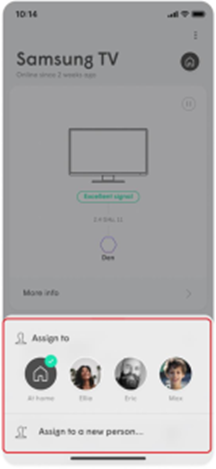
If you accidentally assign a device to the wrong person, you can simply reassign it to another person’s profile (or create a new profile).
- Navigate to the incorrectly assigned device.
- Tap on the ⋮ on the upper right-hand corner to view the device menu and select Assign Device to…
- Select the appropriate profile to move the device to. You can also add a new person profile to your app at the same time!
- Your device will now appear under the new profile!
- Please note that any rules (Adblocking, Content Access, or Online Protection) will be reset to match the new profile.
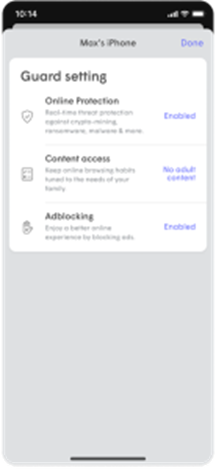
Adblocking, Online Protection, and any custom Approve / Block lists can only be configured on a location, person, or device level. Content Access (parental control) settings can be configured on a person and device level. Location level: Applies to all devices connected to the network.
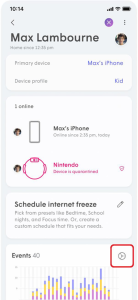
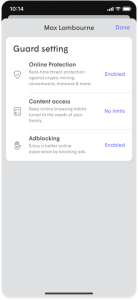
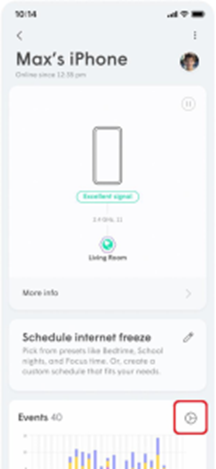
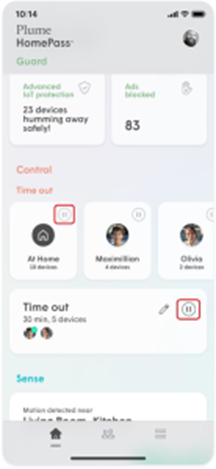
Plume gives you the ability to briefly freeze or pause internet access globally for all people or for all devices instantly through the Time Out feature. If you want to set a scheduled Internet break, consider our Device Freeze feature. Setting a custom Time Out / Global Time Out (All people)
- From the home screen, scroll to the Control Section and find the option Time Out menu.
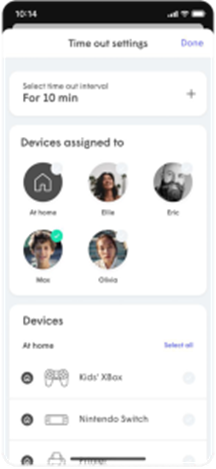
- Tap on the pencil icon to edit who will be put in a Time Out and the length of the Time Out.
- Use the + or – to modify the Time Out period in 10-minute increments.
- Under Devices belonging to, tap on the people individually or you can use the black checkmark to select everyone.
- Tap on Done to return to the previous screen.
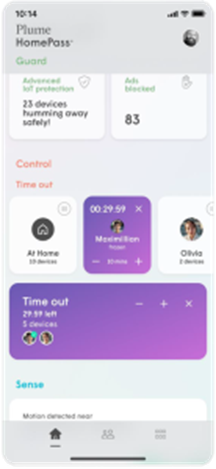
- Tap on the pause icon to activate the Time Out. All devices assigned to the people selected will now have Internet access blocked. The Time Out timer will count down until expiry.
- Use the +, – or x to modify the duration or cancel the Time Out.
 Setting a custom Time Out / Global Time Out (All devices)
-
- From the home screen scroll to Control Section and find the Time Out menu.
- Tap on the pencil icon to edit who will be put in a Time Out and the length of the Time Out.
- Use the + to increase the Time Out period in 10-minute increments. Use the – to reduce the duration.
- Under Devices at home, tap on the devices individually or you can use the black checkmark to select all devices.
- Tap on Done to return to the previous screen.
- Tap on the pause icon to activate the Time Out. All devices selected will now have Internet access blocked. The Time Out timer will count down until expiry.
- Use the +, – or x to modify the duration or cancel the Time Out.
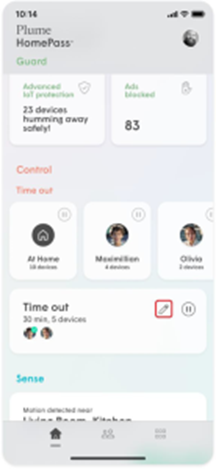
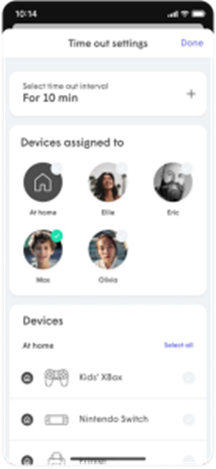
If you have assigned a primary device for everyone in your home, you can use the People Notifications feature to receive notifications when people return home or leave. Enable People Notifications • Open the More menu and tap on Notifications. • Make sure People notifications are turned on and select the profiles for which you would like to receive alerts.
- Open the People Profiles view of the HomePass App
- If you have set up People Profiles and assigned them primary devices, the history of when they’ve been home will appear at the top.
- You can use the arrows to cycle the daily event history from Today all the way to 6 days ago.
During the initial setup, the first password created is a Home zone password, although you can add more. Local network access to devices connected to your network in the Home zone can be selectively shared with devices connecting with a Guest zone password.
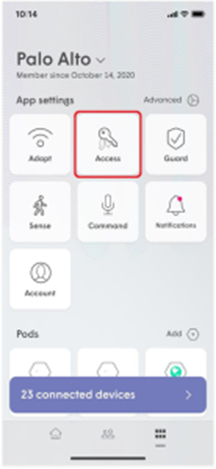
- Open the More tab and click on the Access button.
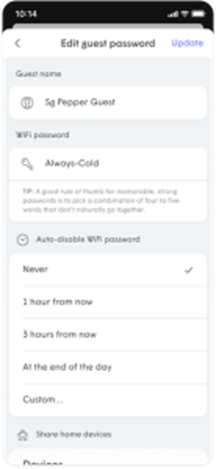
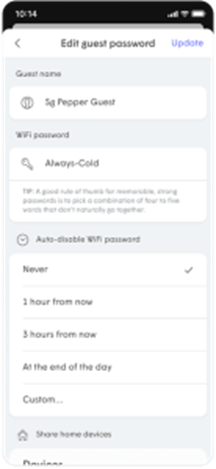
- While in the Guest settings page, tap on New Guest Password.
- Enter a name* and a new password.
- Use the drop-down arrow next to Auto-disable WiFi Password and choose one of the options.
- Add a checkmark next to one or more Shared Home Devices (printer, NAS, media player), to allow your guest access to it over the local network.
- Tap on the Add to save.
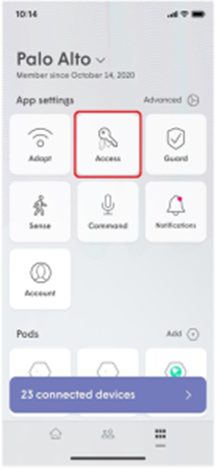
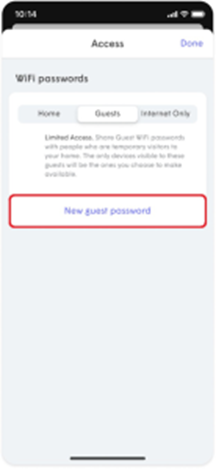
- Open the More tab and click on the Access button.
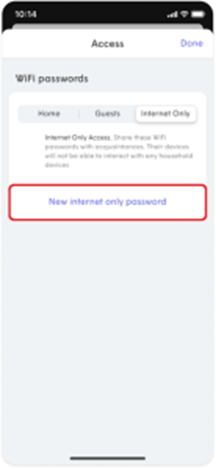
- While in the Internet Only settings page, tap on New internet only password.
- Enter a new password.
- Use the drop-down arrow next to Auto-disable WiFi Password and choose one of the options.
- Tap on the Add to save.
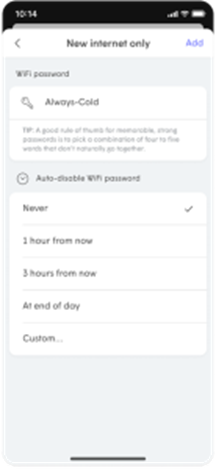
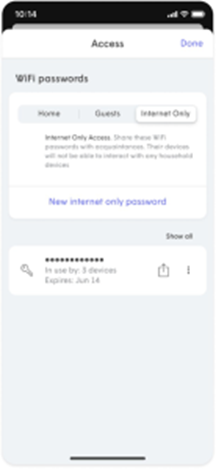
- Tap on the menu icon on the App home screen.
- Tap the Access option to view the Network Name and Passwords.
- Tap on Home, Guests or Internet Only to access that zone’s settings page.
- Next to the password, you want to share, tap on the Share icon.
- Choose the method you want to use to share the password (SMS, email, Airdrop) and send it.
- The recipient will receive a link. Clicking on it will take them to a web page from which they can copy the Network name and the password.
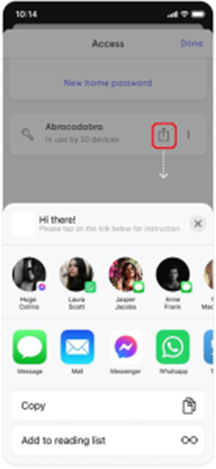
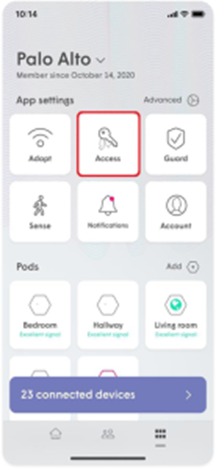
How do I disable or change a WiFi password? You can easily edit, delete, or temporarily disable a password by using the HomePass app. You can also edit the access level of any user with guest access. To suspend or control access on a device level, use the Device Freeze feature. Editing WiFi passwords
- From the More menu, tap on the Access option.
- Tap on Home, Guests, or Internet Only to access that zone’s page.
- Tap the ⋯ next to the password you want to modify.
- Choose Edit, Disable, or Delete.
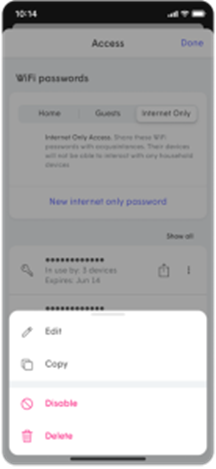
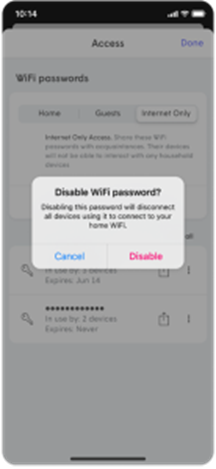
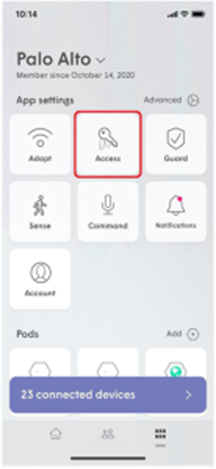
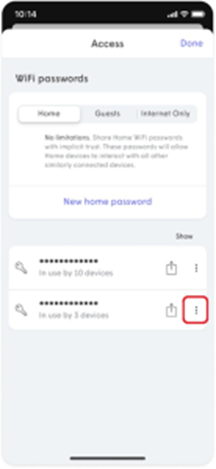
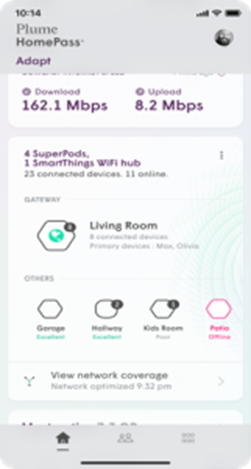
You can always view the status of your pods from the Home Screen by selecting Adapt. You will be able to scroll through all the pods associated with your network with its current status.
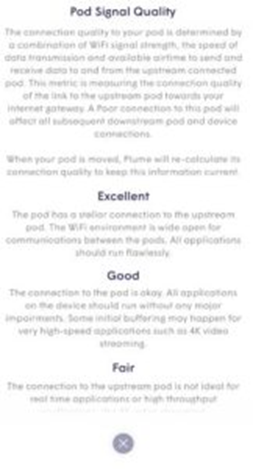
If the “Still looking for Internet connection to Plume pod…” screen pops up, it means that the HomePass App is not detecting an Internet signal on your gateway pod.
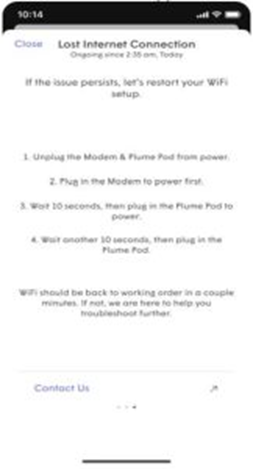
- No Internet is provided through your modem or router.• Power cycle your modem. If you have recently rebooted your modem or router, re-establishing the Internet connection can take a while. • If your gateway pod is connected to another router or switch, verify that it’s properly setup by reviewing our recommended setup here. To confirm Internet availability, try to connect the pod directly to the modem.
- Pod is not receiving any power.• Try to plug in the pod to another outlet. The LED should turn on.
- Pod does not power ON and is defective.• Try another pod so you can continue with the setup. Contact Cablenet Support to help diagnose your issue and facilitate the replacement of your defective pod.
- Bluetooth on your device is OFF.• Be sure to turn ON Bluetooth on your device. The Bluetooth option is often found in the Settings section of your device.
Online Protection now supports Outbound IP Protection and Intrusion Prevention, the latest advancement of Plume Guard features! Previously, Online Protection worked by detecting only malicious DNS based threats. By now protecting devices from connecting to malicious sites using IP addresses (Outbound IP Protection) and DNS based lookups, your home is now more protected than ever! Additionally, Intrusion Prevention automatically blocks connections from high-risk IP addresses trying to remotely connect to your devices, keeping you and your family safe from online threats. Another benefit of the IP based protection is that it enhances our Content Access feature by making it possible to manually block specific IP addresses in addition to domains. Outbound IP Protection and Intrusion Prevention are included when turning on Online Protection if you have a SuperPod connected as the Gateway Pod with firmware 2.4.3 and higher.
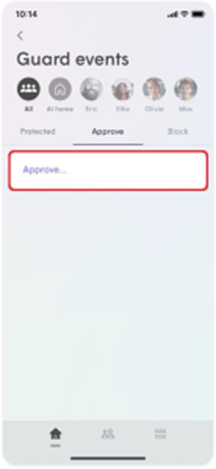
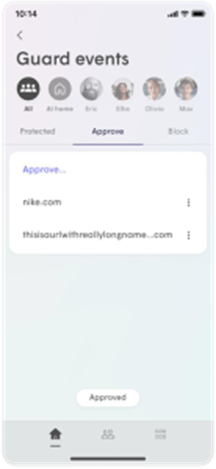
You can approve a website for a person, the entire network or a device if not assigned to a person. Up to 50 websites can be approved in total. If you notice a website has been incorrectly blocked, please report it to support. Approving Websites for Everyone
- From the Home page, tap on the Guard events.
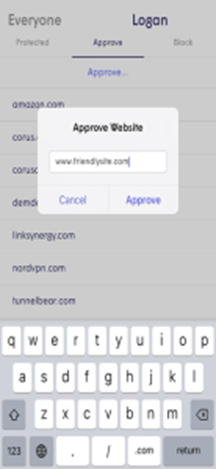
- Go to Approve tab and tap on Approve.
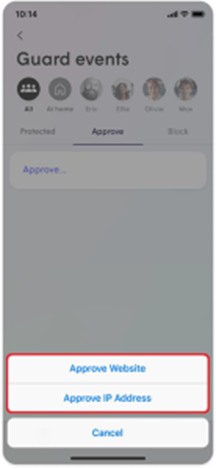
- Choosing Approve Website allows you to enter the URL of domain, while Approve IP Address allows you to enter the server IP address.
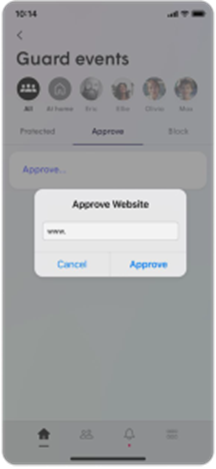
- Enter the URL or IP address and tap on Approve to save. Please note that the full domain name is required. For example; make sure to write “youtube.com” instead of “youtube”.
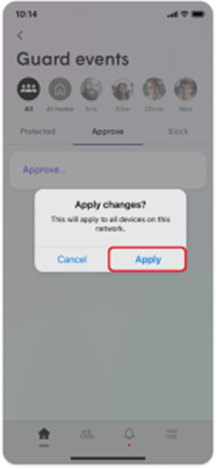
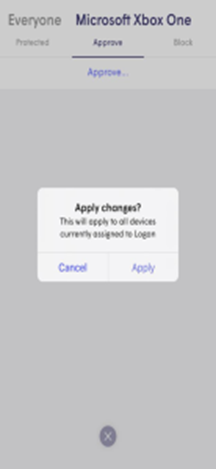
- Tap on Apply to confirm the changes.
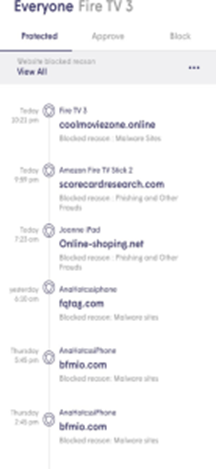
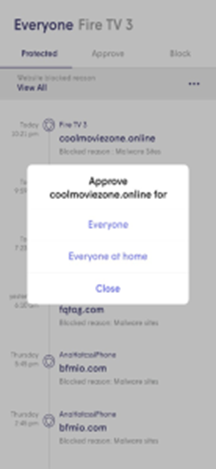
- Additionally, you are able to view previously blocked sites under the Protected tab. Tap or swipe on the blocked event to start the approval flow.
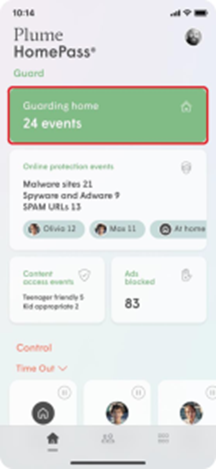
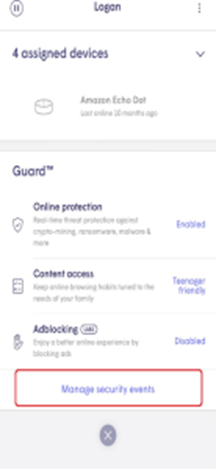
- Navigate to the desired person or device
- Tap on Manage security events at the bottom of the page
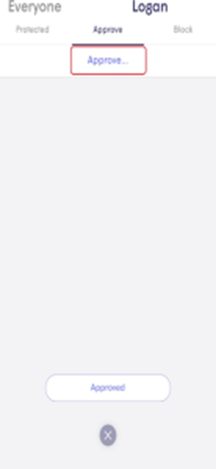
- Tap on Approve
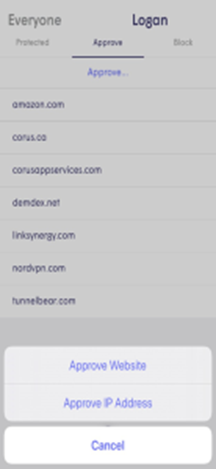
- Choosing Approve Website allows you to enter the URL of domain, while Approve IP Address allows you to enter the server IP address.
- Based on your previous choice, enter the URL or IP address and tap the checkmark to save. The full domain name is required for websites. For example; make sure to write “youtube.com” instead of “youtube”. Tap on Approve to confirm your choice.
- If you are approving the site for a device that has been assigned to a person, the rule will also apply to the person. Likewise, approving a site for the person automatically applies that rule to all of their assigned devices. If the device is not assigned, the rule will only apply to the device.
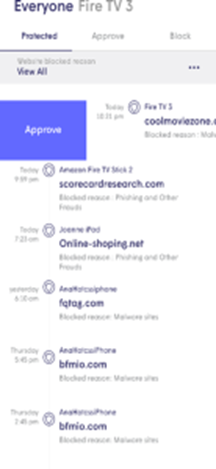
- From the Home screen and tap on the Guard events button.
- The Protected tab will display all blocked events.
- You can sort the list of events shown below by type of event or by choosing a person.
- Simply tap on any event to add the site to the Approved list if you trust that it is actually safe.
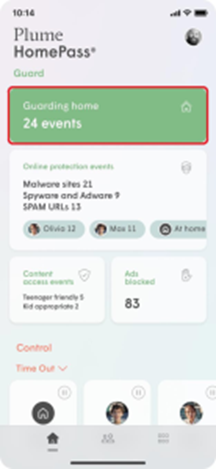
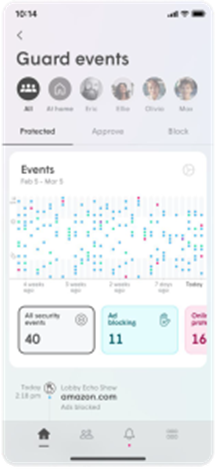
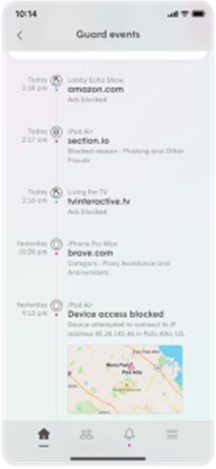
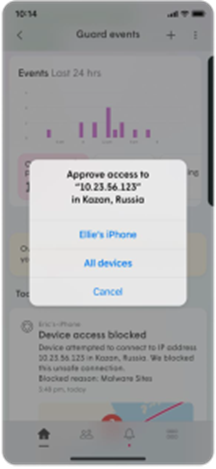
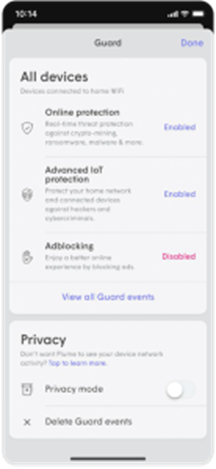
Enabling the Online Protection feature will protect your devices from malware sites, botnets, spyware, spam, phishing, keyloggers, monitoring, proxy avoidance, anonymizer and other harmful attacks on your network. How do I turn on Online Protection? The feature is enabled on all devices by default, but can be customized on the device or person level for an individualized experience. When this is enabled for a person, the Online Protection will automatically be turned on across all the devices assigned to that person. Online Protection is controlled at the Network level in the Guard menu, while device and person settings can be modified from within their respective detail screens.
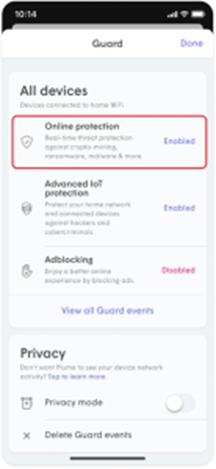
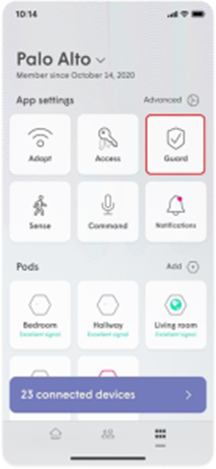
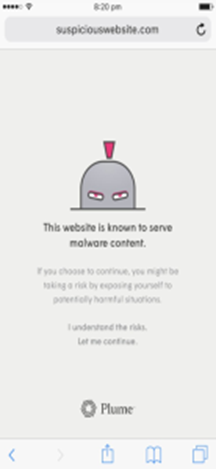
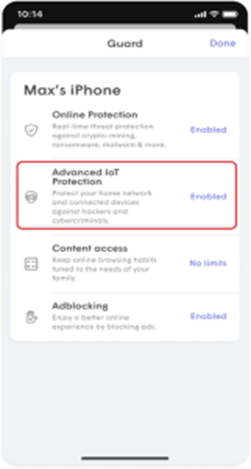
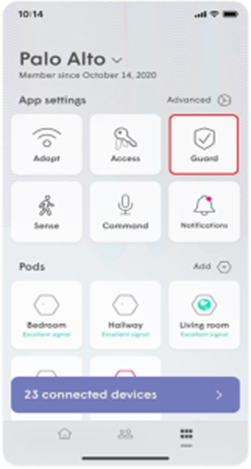
Advanced IoT Protection (AIP) is a security advancement found in Plume Guard. Prior to its release, Online Protection protected all your connected home devices from going to sites known to host malware, spam, or phishing attacks. AIP provides protection from new, unknown attacks that are currently not part of any known threat intelligence database. It can detect unusual patterns in your IoT device’s activity that indicates the device may be infected. Advanced IoT Protection can be enabled via the Guard tab from within the main menu.
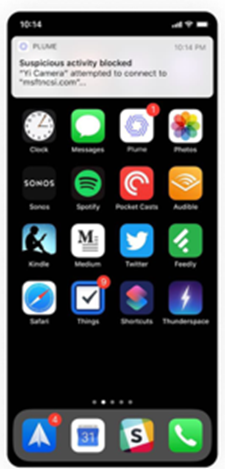
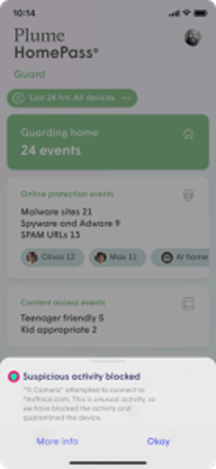
If there is a suspicious activity blocked event, you probably received a push notification warning you that a smart home device went to a website which is considered unusual compared to its normal behavior. There is no required action on your end other than enjoying the peace of mind that Plume is protecting you and your family!
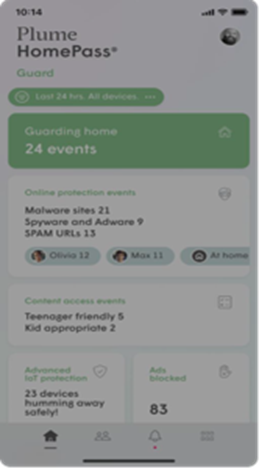
Plume’s Privacy Mode enables you to limit data from being sent to the Plume Cloud. This feature is configurable at the location level. It is Disabled by default, though you can always enable it by accessing the Guard tab of your HomePass app.
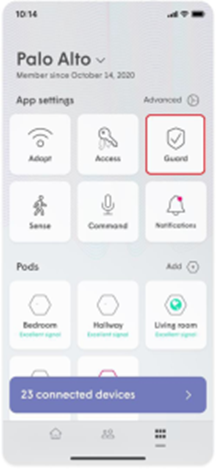
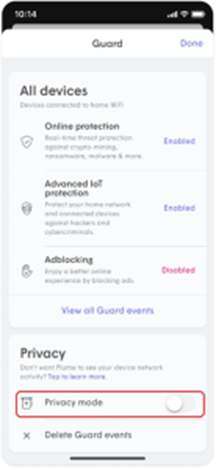
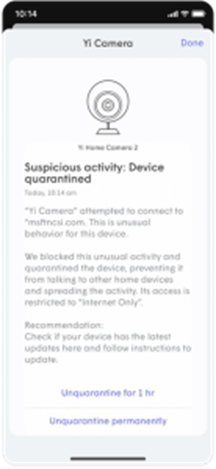
When an anomaly is detected, the device will automatically be placed into quarantine to protect the integrity of your network and the devices connected to it. Quarantining the device effectively places “Internet Only” permission on the device, allowing basic functionality while preventing access to your other home devices. Advanced IoT Protection (AIP) uses machine learning on device network metadata to establish known behaviors. However, sometimes safe sites can be flagged as a false positive. If a new behavior comes across our large training samples or if device behaviors are updated by the vendor, the device may be incorrectly flagged. Learning happens continually to establish new normal behaviors, however can cause some alerts in the interim. If you trust the website the device is accessing, you can whitelist it for the device and for all devices in the home. When Should I Remove a Device From Quarantine? You should only remove a device from quarantine if you trust the website it was trying to access. On a quarantined device, there is a recommendation which will open a web search for the device’s manufacturer website, so you can do more research or find an updated firmware before removing the device from quarantine. Removing a Device from Quarantine
- Open the device list and navigate to the Internet Only devices.
- Find the affected device. The affected device will be labeled: Device is quarantined.
- Tap on the quarantined device for more options.
- You can choose Unquarantine for 1 hour or Unquarantine permanently.
- From the Home screen and tap on the Guard events button.
- The Protected tab will display all blocked events.
- You can sort the list of events shown below by type of event or by choosing a person.
- Simply tap on any event to add the site to the Approved list if you trust that it is actually safe.
With Sense™ existing smart devices become motion detectors without the use of cameras, in order for you to gain whole-home awareness. The HomePass® app shows you movement in the vicinity of each connected device or room on your network.
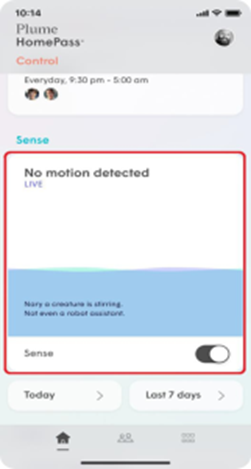
Live View allows you to see both the location and intensity of the detected motion in real-time.
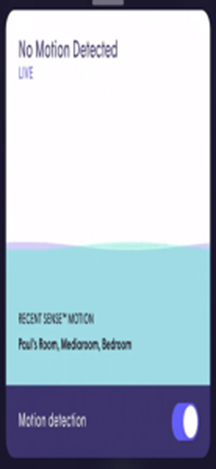
- From the home screen, Scroll to the Sense section.
- The Live View will be available on the home screen. If you want to see more details tap on the Sense section.
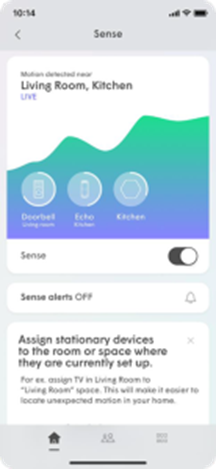
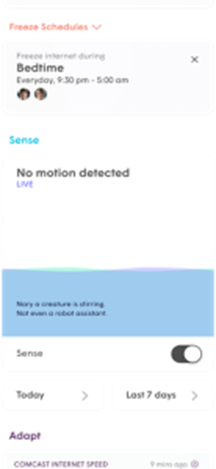
How are devices chosen to detect motion?
-
Sense uses a behind-the-scenes algorithm to pick from the Sense device list devices that are best suited for motion detection.
- If you want to limit motion detection in certain areas of your home, deselect devices in those areas.
- Although Sense will keep most mobile devices separate, ensure you choose devices that will remain static.
- Avoid choosing devices that are battery-operated or may frequently go into a low-power state. Always-on devices such as voice assistants and other smart home devices are good candidates.
- Since Pods are already being used to detect motion, avoid choosing devices in the same room or very close to them.
- To better refine the motion sensitivity, use the Live View feature to test the motion detection in each room.
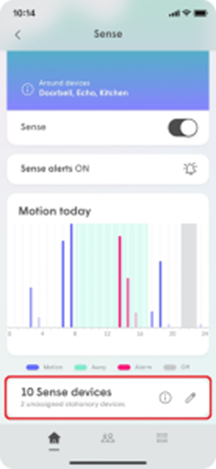
- From the home screen, scroll down to the Sense section and tap on the Live view.
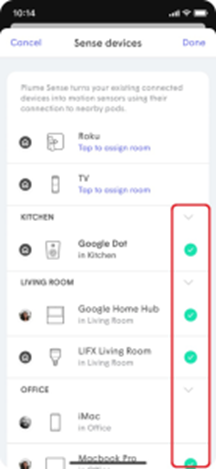
- Scroll down and tap on the pencil icon next to Sense devices.
- Remove the green checkmark next to any device you do not want to be used for motion detection or add a green checkmark next to devices you want to be used.
- Be sure to assign rooms to your devices if you haven’t already done so.
-
Modifying the Sense device list
-
The pool of available devices (Sense device list) from which the algorithm chooses is based on all WiFi devices currently connected to a Pod, excluding mobile devices. This Sense device list can be modified by you to limit motion detection in certain areas. We recommend leaving all devices in the Sense Devices list selected for optimal performance, but if you would like to manually choose which devices can be used, the following guidelines will help you get the most coverage in your home.
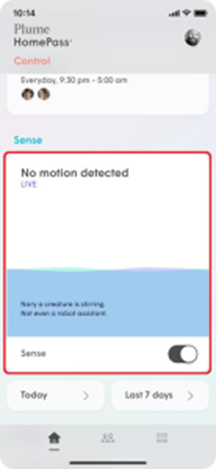
Motion sensitivity may need to be adjusted for the following reasons:
- Improve motion detection sensitivity, particularly if you have only a few Pods and/or WiFi connected devices
- There are obstructions that are making it difficult for your Pods and devices to detect motion in some areas.
- You are getting too many false motion alerts because of your pets or robotic vacuums.
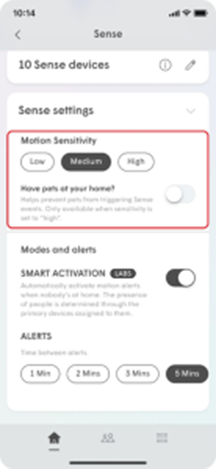
- Low (less sensitive to motion intensity)
- Medium (default)
- High (more sensitive to motion intensity)
- Scroll down on the Home page and Tap on the Sense.
- Scroll down to the bottom of the page and open Sense Settings.
- Choose your Motion Sensitivity option and toggle the Pet mode (optional)
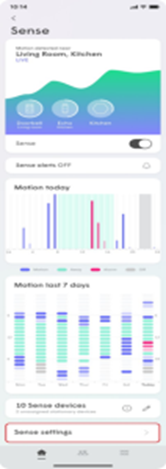
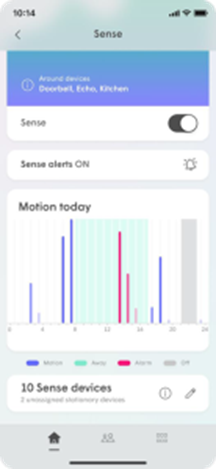
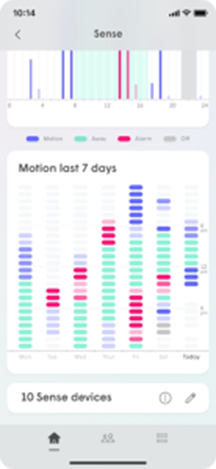
What is kind of motion history is displayed? There are two available historical views:
- Motion Today – Each column represents an hour.
- Motion Last 7 Days – Each segment represents 1 hour.
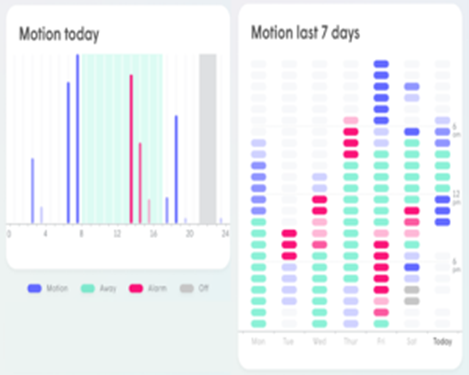
- Blue– Motion was detected (System unarmed)
- Red– Motion was detected when people are away (System armed) and triggered a Sense Alert
- Green – All people are away (System armed) and no motion is present in the 7-day view. Layered in the background of the Today view.
- Grey– Plume Sense motion detection was turned off in the 7-day view. Layered in the background in the Today view.
- The degree of transparency represents the intensity of the motion at the time.
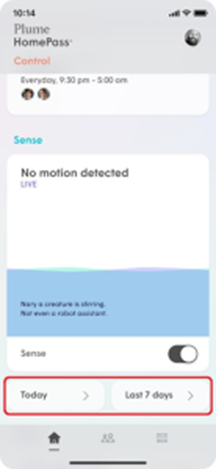
- From the home screen, scroll down until you get to the Sense section.
- Tap on either the Today or Last 7 days buttons to view that historical view.
The HomePass App allows you to group your devices into rooms to improve motion detection accuracy. For example, if your living room has a smart TV, smart speaker, and voice assistant, motion detection on any of these devices can be localized to your living room! Creating rooms
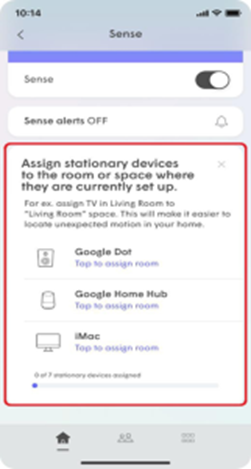
- From the home screen, enable Sense. Once Sense is enabled, a list of eligible devices will begin to populate, and you will be prompted to assign devices to a room.
- Tap on one of the devices in the unassigned device list.
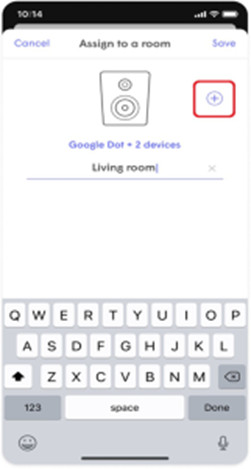
- Enter the name of the room for this device and tap on Save.
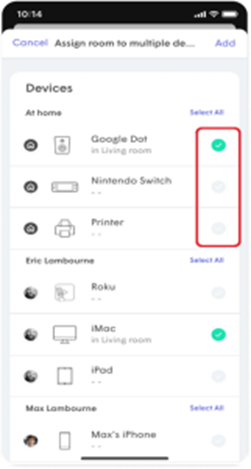
- If there is more than one device in that room, tap on the + icon.
- From the device list, add a green checkmark next to all the devices in that room and tap on Add.
- From the unassigned device list, tap on another device and repeat the previous three steps until all devices have been assigned a room.
When Sense Alerts is enabled, push notifications will be sent to your device whenever the system detects motion. You can enable these notifications to send at all times or only while nobody is at home using the Smart Activation feature. You need to assign a Primary device to everyone to ensure Sense can properly determine if everyone has left and also enable the People notifications. Enable Notifications
- Scroll down to the Sense section on the Home Screen and tap on it.
- Scroll down to the option Sense Alerts and tap on the Bell to enable the notifications.
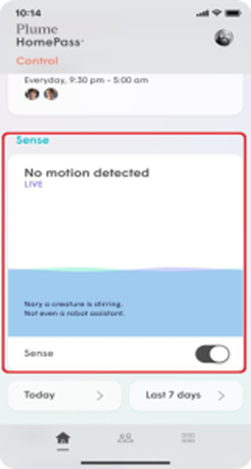
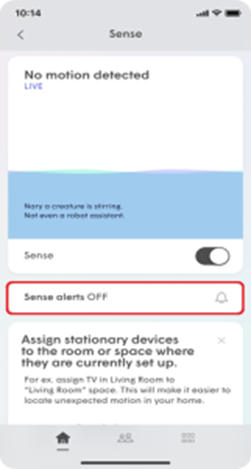
- Tap on the Main Menu at the bottom of the screen and then tap on Sense.
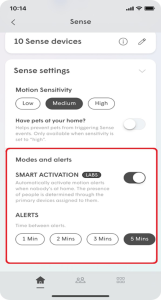
- Under Modes and Alerts, slide the Smart Activation toggle to the right if you do not wish to receive alerts while you are home.
- Under the Alerts section, you can set the minimum Time between alerts to either 1Mins, 2 Mins, 3 Mins, or 5 This prevents you from getting too many notifications if a motion alert gets triggered immediately after another one.
- Scroll back up to the top of the screen to turn Sense alerts from ON to OFF.
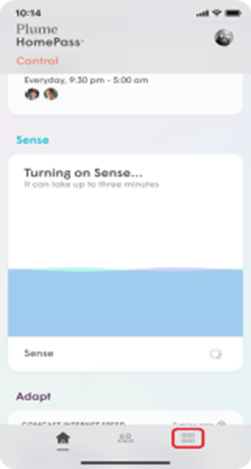
- Sense motion detection is enabled.
- Sense Alerts are enabled.
- If the Smart Activation of alerts has been enabled, everyone has left your home. (all assigned primary devices have been disconnected for 15 minutes or more)
- The motion being detected occurs for at least 2 seconds (5 seconds if pet mode is enabled), within an approximate 10′-13′ radius from a motion detection device or SuperPod.
- The minimum time interval since the last alert has been met.
These are the most common reasons for not receiving Sense Alerts:
- Push notifications may have been disabled on your device.
- The motion being detected is not enough to trigger a Sense alert. Alerts are triggered only if the motion event lasts at least 2 seconds (5 seconds with pet mode enabled) and within approximately 10-13 feet of a pod or Sense enabled device.
- The sensitivity is set too low for the amount of motion present.
- Sense Alerts have been turned off.
- Unless Smart Activation is disabled, notifications will not be sent if you and your other family members are home.
Other than Smart Activation for Sense alerts not being enabled, the most common reason you may still be getting Sense alerts while you are home is that Primary devices have not been assigned to people or People profiles have not been created. Your Home / Away status is based on when all assigned primary devices have disconnected from the network. If you have not assigned any primary devices to people, your current status will always be away and notifications will always go out if there is motion.
If you have the Plume Homepass® app, follow these 3 simple steps: 1. Go to the Settings option and then the Adapt option. 2. Select the type of network whose access code you wish to change (eg guests, internet only) 3. Select Edit and change the access code. If you don’t have the Plume Homepass® app call the Customer Call Centre on 130 to instantly change your WiFi access code.
Speed Test
An internet speed test gives you a good indication of your connection’s performance at the time of testing. For the most accurate result, connect your device directly to your modem using an Ethernet cable and pause downloads, streaming and other activities while testing.
Yes. Your WiFi connection can affect your speed test results. Distance from your modem, WiFi signal strength, network congestion and the device you are using can all impact your results. For the most accurate test, use a wired connection where possible.
It’s normal for speed test results to vary. Your results can be affected by WiFi conditions, network traffic, the device you are using and other activity on your connection. Try testing at different times to get a better picture of your typical internet speed.
Internet speed, measured in Mbps, shows how quickly data is downloaded or uploaded. Ping, measured in milliseconds (ms), shows how quickly your connection responds. A high speed is great for downloading and streaming, while a low ping is important for responsive activities such as gaming and video calls.
Jitter measures how much your ping varies over time. Low jitter means your connection is more stable, while high jitter can cause interruptions, lag or poor-quality audio and video during gaming, video calls and other real-time activities.
The right internet speed depends on how you use your connection and how many devices are connected. Everyday browsing and streaming require less speed, while households with multiple users, 4K streaming, gaming or large file uploads can benefit from higher download and upload speeds.
For everyday HD streaming, a download speed of around 5 Mbps per stream is generally sufficient. Higher speeds are recommended for 4K streaming or when multiple people are streaming at the same time.
Online gaming does not usually require extremely high download speeds. A stable connection, low ping and low jitter are more important for a smooth gaming experience. Higher speeds can help when downloading games and updates.
A lower ping means a more responsive internet connection. A ping below 20 ms is excellent, while 20–50 ms is generally very good for activities such as gaming and video calls. Higher ping can cause noticeable delays or lag.
Yes. You can run an internet speed test on your smartphone or tablet. Keep in mind that testing over WiFi can produce different results from a wired connection because your WiFi signal and device can affect the measured speed.
For a better understanding of your connection, run the speed test at different times of the day. Testing during both busy and quieter periods can help you see whether your internet speed changes depending on network usage.
A good speed test result does not always mean everything will feel fast. WiFi signal strength, your device, network congestion, latency, jitter or the server you are connecting to can affect your online experience. Try testing on different devices and, if possible, using a wired connection.
First, run the speed test again, preferably using a wired connection. Make sure no other devices or applications are heavily using your connection. If your results remain consistently lower than expected, contact Cablenet at 130 for further assistance. If the issue persists and your speed remains below the expected level, you can submit a complaint. This applies if, for 3 consecutive days, you receive less than 80% of your normally available speed for a period of less than 12 hours within a 24-hour day, or less than 80% of the minimum speed at any given time. Cablenet may arrange a technical check at your premises to measure your connection. You will need to provide access to the premises and allow the technical team to take the required measurements.
No. Network outages caused by technical issues, maintenance or power cuts are not included when calculating your normally available internet speed.
In instances where the APN does not appear automatically, you will have to select it as follows: Internet settings for iPhone devices:
- On the home screen, select Settings
- Select Cellular
- Select Cellular Data Network
- Select APN
- Type cablenet
- Select Menu to save settings
- Select Apps
- Select Settings
- Select Wireless & Networks or Connections
- Select More Networks or More Settings
- Select Mobile Networks
- Select Access Point Names
- Select the Menu button
- Select New APN
- Select Name
- Type cablenet and press OK
- On the home screen, slide your finger to the left
- Select Settings
- Select Mobile Network
- Select Add Internet APN
- Type cablenet
Mobile hotspot can be activated on Android by heading to Settings > Network & internet > Hotspot & tethering, and toggle on Use Wi-Fi hotspot.
For iPhone devices, go to Settings > Cellular > Personal Hotspot or Settings > Personal Hotspot. Then tap the slider next to Allow Others to Join.
Please contact our Customer Service Centre on 130 so that we can check the coverage in your area.
When you can’t make any calls, the most likely reason is that outgoing calls on your mobile have been blocked, either through your device settings or due to an outstanding balance. For more information, please call the Customer Service Centre on 130.
Your mobile’s signal strength is directly affected by the distance between you and the tower transmitting the signal. As the distance between you and the tower increases, the signal strength will weaken until you connect to another signal-transmitting tower which is closer to your location.
If you can’t send SMS messages from your mobile, check SMS settings on your device and ensure that the number of the message centre is +35794066666.
The SIM card is available in three sizes: SIM, Micro SIM και Nano SIM. Cablenet also offers you the option of an eSIM.
Currently, the "Twin SIM" service is not available on Cablenet's mobile network.
PIN & PUK information is available on the reverse side of the SIM card. If you have lost this information, please call the Customer Call Centre on 130 so that we can give you the PUK and you may subsequently set your new PIN. The information can only be given to the owner of the SIM card.
Each SIM card has a unique international identification number. This is the ICCID number and it is printed on each SIM card.
The IMEI number is printed under your device’s battery and on the device’s packaging. It will also appear on your screen when you dial *#06#. We suggest you write down your device’s IMEI number because you will need it if you lose your mobile.
All Cablenet Mobile subscribers can enjoy low roaming charges for voice calls, SMS, and data usage, provided they connect to one of the networks with which our company partners. For any calls made or received, you will be charged according to the billing zone of the country you are in and the network you are connected to.
If you are overseas, you may contact the Customer Service Centre on +357 22255130.
Yes, all Cablenet mobile plans are subject to a default Credit Limit. Your Credit Limit is set at €50 and is consumed whenever you may use your mobile line for any “out-of-bundle” services. Out-of-bundle consumption includes additional minutes or SMS beyond your inclusive credits, calls to international destinations, roaming usage not covered by the RLAH rules (see Roam Like at Home), and usage of local premium services and calls to special numbers. For more information call 130.
Yes, if the default spending limit is depleted and you would like to boost your default spend limit by €20 for an additional 30 days, you can do so by sending an SMS to 8844 with the code CL20. If you would like to increase it by more than €20, please call 130.
- Try optimizing your device by turning it OFF and then back ON or by setting Airplane mode ON and then OFF.
- Try to use another roaming partner by manually selecting it on the device. You can find our roaming partners at:
- For monthly plans, click here and select “Roaming Operators” under the Roaming section
- For prepaid plans, click here and select “Roaming Operators” under the Roaming section
- Change the setting in “SIM Toolkit” from Automatic to Manual.
- Check if you are using the country prefix code (i.e. Cyprus +357xxxxxxxx).
Currently, Internet plug&surf is only available for surfing within Cyprus and cannot be used while roaming.
To avoid any unwanted charges when traveling near country borders it is recommended that you use manual rather than automatic mobile network selection on your mobile device and always check the name of the network provider on your phone before using it. Also, you can turn data roaming off in your mobile device’s settings for you to avoid any accidental data roaming charges.
After its activation, you'll be notified of every call you missed, even when your phone is switched off or out of range.
The text message includes information such as the phone number that called you, the number of missed calls and the date and time of the missed calls.
There is no limit.
'Unknown' appears when Caller ID has been blocked by the caller.
To deactivate the service, you must text MCN OFF to 8844. You wil then receive a text message via SMS confirming that the Missed Call Notification service has been deactivated.
Yes. You'll receive notification of missed calls even when you're roaming.
Yes. You can send a text message via SMS to 8844 while you're roaming. The service's activation and deactivation procedures remain the same.
When the service is activated, the system automatically sets call forwarding to +35722250159. This is a basic setting for its correct operation.
If you delete or replace the number +35722250159 from the device's call forwarding, the Missed Call Notification service will not function. You can add the number +35722250159 by typing it in or reactivating the service.
Yes, you'll be able to receive these specific messages however you won't be able to send texts via SMS. The correct number for the SMS Centre is +35794066666.
For iPhone devices:
- On the home screen, select Settings
- Select Cellular
- Select Data Network
- Select APN
- Type cablenet
- Select Menu to save settings
- Select Apps
- Select Settings
- Select Wireless & Networks or Connections
- Select More Networks or More Settings
- Select Mobile Networks
- Select Access Point Names
- Select the Menu
- Select New APN
- Select Name
- Type cablenet and select OK
You can visit any one of our stores or apply online. Activation will be completed two working days after the date of the transfer from another provider to Cablenet.
You can visit any one of our stores and present your ID card/passport and a recent bill from your current provider. Activation will be completed two working days from the date of number transfer from the previous provider to Cablenet. You can see the available plans, here.
Yes, you can transfer your number at any Cablenet Store or online by clicking here.
You can transfer your line to Cablenet easily and without any charge. The application process can be done either at any Cablenet store or online. We will take care of the rest. We’ll call you to complete the process and inform you about all the next steps. You just need to replace your SIM card when you receive the relevant SMS. Required documents:
- ID / Passport number
- Previous bill from the current provider
Just dial *101# and use the interactive menu. When you check your available balance (using *101#), the balance displayed is the available balance in your bundle.
The Cablenet mobile telephony network supports B7 – 2600MHz and B20 - 800MHz bands.
You can find the termination fees here.
5G is the next generation of mobile network technology, designed to deliver a faster, more responsive experience on your smartphone. Compared to 4G, 5G offers much faster download and upload speeds, lower latency (so things like video calls, streaming, and gaming respond instantly), and greater network capacity so more people and devices can connect at the same time without slowing down, even in crowded areas. And when it comes to work, 5G makes it easier to stay productive on the go, whether you are sending large files, downloading documents, joining video meetings, or using cloud-based apps. That means smoother streaming, quicker app loading, more reliable connections, and better performance overall. It’s mobile internet, upgraded!
Not necessarily. If your current phone supports 5G, you are good to go! You can check this in your device’s Network Settings or by looking up your phone model online. If your phone is not 5G compatible, you will need to upgrade to a newer model that supports 5G and is certified for use on Cablenet’s 5G network to enjoy the benefits. For the certified devices, click here.
It’s easy! Just subscribe to Cablenet's 5G Unlimited plan. To enjoy the full 5G experience, make sure your device supports 5G, is certified for Cablenet’s 5G network and that you are in an area with 5G coverage.
To enjoy 5G on your phone, it needs to be both 5G compatible and certified for use on Cablenet’s 5G network. You can click here to view the list of certified brands. Please note:
- Older models from any brand may not perform reliably on our 5G network and we cannot guarantee full compatibility.
- Only devices manufactured for the European market are supported. Devices made for other regions may not function properly or at all on our 5G network.
Cablenet’s 5G network is available in all major cities and selected suburban areas across Cyprus, with coverage continuing to expand.
5G is designed to be super-fast, but like any wireless technology, speed can vary depending on a few things. Your location, how close you are to a 5G antenna, how many people are using the network at the same time, and your device’s capabilities, all play a part.
Usually not. In most cases, your phone will connect to the 5G network automatically. If it not, you may need to enable 5G manually in your device’s Network Settings. For step-by-step instructions based on your phone model, click here.
There is no need to replace your SIM or eSIM. If your current SIM supports 4G, it will also work with 5G, as long as our device is 5G compatible, certified for use on Cablenet’s 5G network and you are in a 5G coverage area.
Yes! Most modern smartphones are designed to switch automatically between 5G and 4G if needed. If 5G isn’t available in your area or the signal is weak, your device will connect to the best available network to keep you online without any action needed on your part.
Yes, you can use 5G outside of Cyprus. This however depends on the availability of 5G in the countries you visit and the roaming agreements that Cablenet has with local providers.
No. Access to 5G is included in the 5G Unlimited mobile plans. There are no additional fees. Just subscribe!
No, 5G is not harmful to human health. In Europe, extensive reviews by scientific and regulatory bodies have concluded that 5G is not harmful to human health when operating within the safety guidelines. The European Union (EU) follows recommendations from the International Commission on Non-Ionizing Radiation Protection (ICNIRP)—an independent body recognized worldwide for setting exposure limits to electromagnetic fields (EMF). The ICNIRP guidelines are legally enforced in all EU countries including Cyprus. These limits are designed to protect all people, including children and vulnerable groups, with large safety margins. 5G networks in Europe and in particular Cyprus comply with the strict exposure limits that are far below levels known to cause harm.
Yes. 5G exposure is regulated by strict international safety standards designed to protect human health. The exposure limits set in these standards are based on decades of scientific research and are enforced by national and regional authorities. The International Commission on Non-Ionizing Radiation Protection (ICNIRP), which is an independent scientific body, sets global guidelines for exposure to electromagnetic fields (EMF), including those used in 5G. The World Health Organization (WHO) supports ICNIRP’s guidelines and conducts its own reviews of EMF research. WHO states that no health effects have been causally linked to wireless technologies like 5G when exposure is within limits. EU countries, including Cyprus, follow ICNIRP guidelines as part of our national and EU laws. In Cyprus, national bodies such as the Department of Electronic Communications (DEC) monitor and enforce compliance with these safety standards.
eSim
The main difference between a SIM card and an eSIM is the physical presence. A SIM is a physical card that needs to be inserted into a device, while an eSIM is embedded into the device’s hardware. This allows the user to use mobile services without the need of a physical card.
The eSIM does exactly what a physical SIM would do. The only difference is that instead of inserting it in your device, you scan a QR code which contains all the data required for your device to establish a connection with Cablenet’s network.
Yes, eSIM QR codes are unique. Each eSIM has its own distinct QR code that contains specific information related to the connected subscription. Once the QR code is scanned and as long as the eSIM is activated on your device, the QR code becomes inactive and cannot be used again. This unique QR code ensures that only your device can access and activate the eSIM associated with your subscription.
You can visit one of Cablenet shops to swap your physical SIM with an eSIM or make your request online. The charge for the change will be according to the Company’s Pricelist.
- Get an eSIM Voucher from a Cablenet store.
- Go to the device settings and find the eSIM or cellular settings section.
- Choose the option to add or enable an eSIM profile.
- Scan the provided QR code.
- Follow the on-screen instructions to complete the eSIM activation process.
You can have only one profile per eSIM.
The number of eSIMs a device can support depends on its capabilities, but many modern devices can store multiple eSIM profiles.
There is no specific up-front cost for eSIMs, apart from the Mobile Service Registration Fee which is charged for all new mobile subscriptions.
eSIM technology is secure and uses encryption and authentication protocols like a physical SIM card.
The PIN and PUK codes can be found on the eSIM Voucher.
All mobile services can be used with an eSIM, exactly as they would with a physical SIM.
With the activation of the eSIM, your physical SIM will be deactivated.
Only one number can be active per eSIM.
That depends on your device. If your device supports it, you can use a physical SIM and an eSIM simultaneously.
If your phone is lost or stolen, you should immediately contact our Call Center (130) to deactivate the eSIM and prevent its unauthorized use. We can replace your eSIM at any Cablenet shop. The charge for the replacement will be according to the Company’s Pricelist.
- Go to the device settings and look for the eSIM or cellular settings section.
- Find the option to manage or remove eSIM profiles.
- Select the eSIM profile you would like to remove and follow the instructions.
You can transfer your eSIM to another compatible device up to six times. After that, you will need to obtain a new eSIM voucher.
Unless the eSIM is deleted from the device, it will not be affected.
Yes, eSIM can be used abroad in the same way as a physical SIM.
Yes, you can switch back to a physical SIM by visiting a Cablenet store.
Yes, you can install the eSIM to a new device after deleting it from your existing device. You can then reinstall the eSIM by scanning the QR code on your eSIM Voucher on your new device.
eSim Basic
An eSIM does exactly what a physical SIM card does. The only difference is that, instead of inserting it into your device, you scan a QR code which provides all the data that your device needs in order to establish a connection with Cablenet’s network.
Yes, eSIM QR codes are unique. Every eSIM has its own unique code that contains specific information regarding the connected subscription. As soon as the QR code is scanned and for however long the eSIM stays activated on your device, the QR code is deactivated and can not be reused. This unique QR code ensures that only your device has access to and can activate the eSIM connected to your service.
You can visit any Cablenet store and swap your physical SIM card to an eSIM. The charge for the change will be according to the Cablenet Pricelist valid at that time.
You can have only one profile per eSIM.
You can check if your device is included in the devices supported by our eSIM service in the above list of certified devices.
eSIM technology is safe and uses encryption and authentication protocols, just like a physical SIM card does.
The PIN and PUK codes are printed on the eSIM Voucher.
You can use all mobile telephony services with an eSIM, exactly as you would with any physical SIM card.
Your physical SIM card will be deactivated upon activation of the eSIM.
There is no upfront cost for eSIMs, aside from the Mobile Telephony Service activation fee that applies to all new Mobile Telephony subscriptions.
The main difference between a SIM card and an eSIM is physical presence. The SIM is a physical card that must be inserted in a device, whereas the eSIM is embedded in the device. This allows the user to use mobile services without the need for a physical card.
Yes, you can install the eSIM to a new device after you first delete it from your current device. You can then reinstall the eSIM on your new device by scanning the QR code on your eSIM Voucher.
Yes, you can visit any Cablenet store and revert to a physical SIM card.
Yes, the eSIM can be used overseas, just like a physical SIM card would.
- Get an eSIM Voucher from a Cablenet store.
- In your device’s settings, locate the eSIM or mobile settings.
- Select the option to add or activate an eSIM profile.
- Scan the Voucher’s QR code.
- Follow the on-screen instructions to complete the eSIM activation process.
The eSIM will not be affected unless it is completely deleted from the device.
You can transfer your eSIM to another compatible device up to 6 times. After that, you will have to get a new eSIM Voucher.
- In your device’s settings, locate the eSIM or mobile settings.
- Locate the option to manage or uninstall an eSIM profile.
- Select the eSIM profile you wish to uninstall and follow the on-screen instructions
If your mobile is stolen or lost, you must contact the Customer Call Centre on 130 (+357 22255130 from abroad) immediately, so that we can deactivate your eSIM and prevent the possibility of its unauthorised use. We can replace your eSIM at any Cablenet store. Replacement will be charged according to the Cablenet Pricelist valid at that time.
That depends on your device. If your device supports it, then you can use both a physical SIM card and an eSIM at the same time.
Only one number per eSIM can be active.
Missed Call Notification
To activate the Missed Call Notification service, send SMS the keyword MCN ON to 8844. The service will be activated automatically, and you will receive confirmation via SMS. For more information, click here.
After its activation, you'll be notified of every call you missed, even when your phone is switched off or out of range.
The text message includes information such as the phone number that called you, the number of missed calls and the date and time of the missed calls.
There is no limit.
'Unknown' appears when Caller ID has been blocked by the caller.
To deactivate the service, you must text MCN OFF to 8844. You wil then receive a text message via SMS confirming that the Missed Call Notification service has been deactivated.
Yes. You'll receive notification of missed calls even when you're roaming.
Yes. You can send a text message via SMS to 8844 while you're roaming. The service's activation and deactivation procedures remain the same.
When the service is activated, the system automatically sets call forwarding to +35722250159. This is a basic setting for its correct operation.
If you delete or replace the number +35722250159 from the device's call forwarding, the Missed Call Notification service will not function. You can add the number +35722250159 by typing it in or reactivating the service.
Yes, you'll be able to receive these specific messages however you won't be able to send texts via SMS. The correct number for the SMS Centre is +35794066666.
Mobile Features
You can selectively activate Calling Line Identification Restriction (CLIR) for a call by dialing #31# before the number you wish to call. If you wish to permanently withhold your number via your device, please refer to the manufacturer’s user manual or Mobile Supplementary Services.
The Call Forwarding Service enables you to divert received calls to any phone number of your choice within Cyprus. When you activate Call Forwarding to another number, you will be charged as if you are the one making the call from your number to the one to which your call has been diverted. Mobile telephony networks do not provide the ability to forward SMS or MMS messages. To activate the Call Forwarding Service, please refer to the manufacturer’s user manual or Mobile Supplementary Services.
Cablenet’s mobile network allows calls to 900 numbers by default. In order to block calls or unblock calls to 900 numbers from your mobile service, please call the Customer Service Center οn 130.
To activate the Missed Call Notification service, send SMS the keyword MCN ON to 8844. The service will be activated automatically, and you will receive confirmation via SMS. For more information, click here.
Portability
Of course. You can keep your existing number by following the number portability procedure. For more information about number portability and the required documentation, please call the Customer Service Centre at 130 or submit your application through our website. There is no charge for the transfer process.
You will be notified via SMS on your mobile the day before the date set for the transfer. The new Cablenet SIM card will have to be placed in your mobile on the day and time set for the transfer in order to activate the service.
Yes, you can transfer your number at any Cablenet Store or online by clicking here.
Post Paid
You can visit any one of our stores and present your ID card/passport and a recent bill from your current provider. Activation will be completed two working days from the date of number transfer from the previous provider to Cablenet. You can see the available plans, here.
Prepaid
You can buy a Cablenet Prepaid SIM pack at any Cablenet Store, at selected Cablenet resellers, kiosks, and mini-markets. The connection pack includes €1 credit. In order to activate your number, you need to complete the Number Identification process. Following activation, you can top-up your account online, through our website, or at any Cablenet Store or kiosk, all over Cyprus.
You can top-up your Cablenet Prepaid account whenever you want, wherever you are, through our website or through the Cablenet.me app. Alternatively you can top-up at any Cablenet Store or Kiosk, all over Cyprus.
You can top-up your account as often as you wish. Ideally you should top-up your account each time you run out of credit or your credit expires. Note that each top-up card is unique so, if you top-up your account using multiple top-ups, each top-up will expire according to its own expiry time. You can easily top-up online through our website or through the Cablenet.me app.
No, the remaining unused balance will not be transferred and will not be added to another top-up balance. You can top-up online whenever you want, wherever you are, through our website or through the Cablenet.me app.
Download the Cablenet.me mobile app and keep track of your usage whenever you wish! Click here to find out more about the app. Though the app you will also be able to:
- Check your top-up balance or Always On pass balance
- To-up your account or another Cablenet Prepaid subscriber’s account
- Transfer credit to another Cablenet Prepaid subscriber
- Activate an Always On pass
- Review your purchase history
You can easily transfer balance to another Cablenet Prepaid user, through the Cablenet.me app. Alternatively, type: *121*the Cablenet Prepaid number you wish to transfer balance to*desired amount# and press Call (e.g. *121*94xxxxxx*5#). Both Cablenet Prepaid numbers will receive a text message confirming the successful transfer. Important: both numbers must be identified in order to send/receive balance.
The Always On prepaid mobile passes are the new, revolutionary prepaid bundles that offer inclusive minutes of talk time and SMS, and UNLIMITED data! For more information and all the available Always On pass options, click here. To activate an Always On pass, you need to top-up your account first. For the available top-up options, click here.
Once you have topped up your account, you can activate any Always On prepaid pass by dialing *141# and then selecting the Always On pass you want to activate. You can top-up your Cablenet Prepaid number through our website or our Cablenet.me app. For more information regarding the Always on passes and the available options, click here.
Yes, you can transfer your number at any Cablenet Store, or online by clicking here.
Yes, you can use your Cablenet Prepaid service when abroad. For more information on the roaming rates, click here. To top-up your account while overseas, use our online top-up option or the Cablenet.me app. Please remember that the Always On passes are not active when the subscriber is overseas. Charges incurred during roaming will be deducted from your account balance.
You can visit any one of our stores or apply online. Activation will be completed two working days after the date of the transfer from another provider to Cablenet.
You can easily transfer balance to another Cablenet Prepaid user, through the Cablenet.me app. Alternatively, type: *121*the Cablenet Prepaid number you wish to transfer balance to*desired amount# and press Call (e.g. *121*94xxxxxx*5#). Both Cablenet Prepaid numbers will receive a text message confirming the successful transfer. Important: both numbers must be identified in order to send/receive balance.
Yes, you can transfer your number at any Cablenet Store or online by clicking here.
Yes, you can use your prepaid line overseas. For further information regarding roaming charges, click here. You can easily top-up your account while overseas through our website. or using the Cablenet.me mobile app. Please remember that Always On passes are not active when the subscriber is overseas. Charges incurred during roaming will be deducted from your account balance.
With the Asia On prepaid pass, you can communicate with countries in Asia at lower charges.
| Calls to |
Available minutes |
Call Rate per minute (incl. VAT) |
| Bangladesh |
180 |
€0.0278 |
| India |
120 |
€0.0417 |
| Nepal |
25 |
€0.2000 |
| Pakistan |
90 |
€0.0556 |
| Philippines |
30 |
€0.1667 |
| Sri Lanka |
25 |
€0.2000 |
| Vietnam |
50 |
€0.1000 |
| China |
150 |
€0.0333 |
| Examples | |||
| Calls to 1 destination |
India 120 mins |
- |
- |
| Calls to 2 different destinations |
Bangladesh 90 mins |
India 60 mins |
- |
| Calls to 3 different destinations |
India 40 mins |
Philippines 10 mins |
China 50 mins |
If you are new to the service, make sure that you have completed the Prepaid Number Identification process. If you are an existing Cablenet Prepaid subscriber and your data is not working, check your APN settings.
- Android: Settings -> Mobile networks -> Access Point Names -> (Name: cablenet, APN: cablenet) You can also watch a step-by-step tutorial of the above steps here
- iOS: Settings -> Mobile data -> Mobile Data Options -> Mobile Data Network -> APN: cablenet You can also watch a step-by-step tutorial of the above steps here
Yes, applicable standard prepaid charges apply for the first local call. Don't forget that in order to activate your prepaid service and start using your number, you need to complete the Prepaid Number Identification process. The Prepaid Number Identification is free of charge.
Yes, once your number is identified and activated, all roaming services, including data, SMS, and calls, will be available.
The Always On Daily pass is a booster pass you can activate when you urgently need additional data. It costs €0,99 and its inclusive data last for 24 hours. It can only be activated through the Cablenet.me app. Please note that like all Always On passes, the Always On Daily cannot be activated or used while you are abroad.
Please check if your mobile number is registered and activated. If you have not completed the number identification process yet, you can do so by clicking here. If you have completed it and still cannot link your number to the Cablenet.me app, please visit a Cablenet store or call us at 130 for assistance.
In order to activate your number, you have to complete the Prepaid Number Identification procedure. The process can be done either through our website or via the Cablenet.me app. Your line will then be activated, and you will be able to use your line for calls, SMS or Data, while in Cyprus or abroad. You will also be able to link it with the Cablenet.me app, top-up. activate an Always-On pass, top-up and/or transfer credit to another Cablenet prepaid subscriber.
Roaming
Yes, you can use your mobile data, at no extra charge, when travelling to EU countries, Iceland, Lichtenstein, Norway, Gibraltar and Monaco, so that you can enjoy carefree communication, as if you’re still in Cyprus. A Fair Usage Policy limit applies to the data you can consume within the European Union. The Unlimited plans (5G Unlimited Max, 5G Unlimited, Purple Max Mobile and Mobile Data King) are bound by a Fair Usage Policy. The limit per plan is:
- 5G Unlimited Max 65GB/month
- 5G Unlimited 23GB/month
- Purple Max Mobile 39GB/month
- Mobile Data King 22GB/month
You can contact Call Center support from abroad by dialing +357 22255130
- You can use your plan’s available data in European Union, without any additional charge (Mobile Basic: 50MB limit, Purple Mobile: 5GB limit).
-
A Fair Usage Policy limit applies to the data you can consume within the European Union. The Unlimited plans (5G Unlimited Max, 5G Unlimited, Purple Max Mobile and Mobile Data King) are bound by a Fair Usage Policy. The limit per plan is:
- 5G Unlimited Max 65GB/month
- 5G Unlimited 23GB/month
- Purple Max Mobile 39GB/month
-
Mobile Data King 22GB/month
- As soon as you consume 80% or 100% of your inclusive data within the European Union, you will be notified via a text message.
- If you do not have available data or the Fair Usage Policy Limit of your plan is reached, you can receive additional data by activating a Data Booster.
While roaming outside of the EU any Calls, SMS, or Mobile Data you use are not deducted from your mobile bundle. Instead, they are charged separately according to your usage and are deducted from your Monthly Credit Limit of €100.
There is a collective Monthly Credit Limit of €100 which is applied to Mobile Data, SMS, and Voice while roaming. Also, as a precautionary measure regarding any potential accidental data roaming charges, a limit of €50 applies specifically to your Mobile Data while you travel outside the EU. An SMS will be sent to you as you reach 80% of this amount and again a second SMS when you reach 100%. At this point, your mobile Internet will be suspended in order to avoid any additional charges that may occur. The usage for mobile data is deducted from both the Monthly Credit Limit and the Data Roaming non-EU Limit. Examples:
- I have used €50 on mobile data while roaming outside of the EU. My mobile data will be suspended, and I will have €50 remaining to use for SMS and Voice Calls
- I have used €90 on Voice Calls and/or SMS while roaming outside of the EU. I will have €10 available to use for mobile data and/or Voice Calls and/or SMS.
Yes, you can send an SMS with the code CL20 to 8844 to increase your Monthly Credit Limit by €20 up to three (3) times per month. For information on how to further increase your Monthly Credit Limit, please contact our Call Center on +357 22255130.
Based on EU legislation, if you travel outside the EU, a €50 limit is applied to your mobile data usage. You will receive an SMS notification when you reach 80% of this amount and a second SMS when you reach 100%, at which point your data usage will be stopped to help you avoid any additional charges that may occur. The best practice to avoid unwanted charges is to disable the data roaming option in your device settings.
As soon as you turn on your mobile phone in the country you are visiting you will receive a “Welcome SMS” from us, which will inform you regarding calls (incoming and outgoing), SMS, and mobile internet rates that will be applied during your stay there. You can also find the roaming rates for the country you’re visiting, at the following link Roaming.
If your mobile data connection is not operating properly, you need to verify that the APN is correct by following these steps: Android: Settings -> Mobile networks -> Access Point Names -> (Name: cablenet, APN: cablenet) You can also watch a step-by-step tutorial of the above steps here iOS: Settings -> Mobile data -> Mobile Data Options -> Mobile Data Network -> APN: cablenet You can also watch a step-by-step tutorial of the above steps here
To watch Cypriot channels through the Cablenet network, you must be a subscriber to Cablenet TV. The Cablenet TV service is provided exclusively through a Cablenet Set-Top Box connected to your television via an HDMI cable. Note: Direct connection of the coaxial cable to a television or DVB-C / DVB-T / T2 receiver is not supported.
Yes. The Cablenet TV service is provided exclusively through a Cablenet Set-Top Box (STB/decoder).
Yes, you can. Cablenet TV can be accessed from up to three viewing points in your home. Please note that one decoder per viewing point is required, and the charge is €5 per month per viewing point.
Yes, Cablenet TV channels are provided exclusively through Cablenet set-top boxes (STBs). Each room requires its own set-top box, which connects to the Cablenet modem via Ethernet or WiFi and to the television via HDMI. Up to three set-top boxes (viewing points) are supported per subscription. Note: Direct connection of the coaxial cable to a television or a DVB-C / DVB-T / T2 receiver is not supported.
Yes, Greek subtitles or audio dubbing are available on several international channels. For more details on subtitle and dubbing options, click here.
To ensure the best picture and sound quality, the Cablenet Set-Top Box (STB) should be connected to the TV using the provided HDMI cable, which supports High Definition (HD) video and digital audio. If HDMI connection is not possible, an RCA cable (available at Cablenet stores) may be used, however HD picture quality will not be optimal. The Amino decoder must also be connected to the modem via Ethernet or WiFi. An Ethernet connection is recommended for better stability and performance, as it reduces potential interference from nearby WiFi networks, congestion from other devices, or weak signal due to home layout.
You can use up to three set-top boxes (STBs) under a single Cablenet TV subscription. The first STB is included in your subscription. For a second or third viewing point, additional STBs are available at a monthly fee of €5 each.
DVB-C (Digital Video Broadcast – Cable) is the transmission standard used to deliver all Cablenet TV channels over the coaxial network. All channels are transmitted in encrypted form. Important: Although DVB-C is used as the network transmission standard, customers cannot connect the coaxial cable directly to a television or a third-party DVB-C receiver. All Cablenet TV services must be accessed through a Cablenet set-top box (STB). For full information on channels and packages, click here.
For RF signal distribution within your home, you should use only the frequencies listed below. All other frequencies are either currently in use or may be used in the future for Cablenet transmissions. Channel 34 – 578 MHz Channel 35 – 586 MHz Channel 36 – 594 MHz
The Cablenet TV GO service is available to subscribers of Cablenet TV. To use Cablenet TV GO, download the Cablenet TV GO app from the Apple Store or Google Play, or access it via your browser. Then, log in using the username and password that Cablenet will send you via SMS. Please note that the number of registered devices and simultaneous viewing points per account is limited and depends on your TV plan. You can register up to three (3) personal devices (smartphone, tablet, or browser).
Press the dedicated language or options button on your remote control.
The on-screen menu will appear, where you can select your preferred audio and subtitle language.
Arion
- Press the EPG button on the remote control.
- Select the show you wish to watch and press OK.
- Select Catch-up TV
- Press Back, Menu or EPG to return to normal programming.
- Press the Guide button on the remote control.
- Select the TV show you wish to watch and press OK.
- Select the ‘REPLAY’ icon.
- Press the back arrow on the remote control to display the horizontal menu where you can choose your desired option (such as TV, Guide etc.).
- Alternatively, press OK to display the playback overlay layer and select the
 icon to return to live TV programming.
- Go to TV Section and select TV.
- Select the channel you wish to watch.
- At the bottom of the screen, select the channel flow.
- Select the day and the episode/show.
- Select the name of the TV show and press ‘REPLAY’. Alternatively, select the three vertical dots and press
 ‘REPLAY’
If you are a TV Starter subscriber, you have 5 hours’ availability. If you are a Movies & Entertainment pass subscriber or a Nova Channels pass subscriber, you have 10 hours’ availability. If you are an Unlimited Sports pass subscriber, you are entitled of 5 hours' availability. AMINO
- Press the Guide button on the remote control.
- Select the TV show you wish to watch and press OK.
- Select the ‘Record TV’ icon.
- Press the back arrow on the remote control to display the horizontal menu where you can choose your desired option (such as TV, Guide etc.).
- Alternatively, press OK to display the playback overlay layer and select Record TV, or press the Record button on the remote control.
- Go to TV Section and select TV.
- Select the channel you wish to record.
- At the bottom of the screen, select the channel flow.
- Select the day and the episode/show.
- Select the name of the TV show and press ‘Record TV’. Alternatively, select the three vertical dots and press ‘Record TV’.
The Cablenet TV service includes one (1) viewing point. For additional viewing points, you can visit a Cablenet Store, contact us on 130, or submit your request online by clicking here. You can add up to two (2) additional viewing points.
You can find the termination fees here.
Cablenet offers a variety of TV channels across its different packages, including entertainment, movies, sports, news, and children’s programming. For more information, click here.
TV Features
The “Replay TV” function is the ability to watch TV programs up to 7 days following their initial airing date, for as many times as you wish, without any limitations. This complementary function is available only for specific channels. A list of the channels that support this function can be found here.
The “Record TV” function is the ability to record TV programs up to 7 days ahead or prior to the current viewing time. This function is available only for specific channels. A list of the channels that support this function can be found here. This function supports up to 5 hours of recording content for TV Starter Pack subscribers, up to 10 hours for Movies & Entertainment and Nova Channel pass subscribers, and up to 5 hours for Unlimited Sports pass subscribers. The content can be saved up to 30 days with no additional charges.
Video on Demand services are currently unavailable on the Cablenet TV GO service.
Yes, the Parental Control feature is directly associated and set within the user’s Profile settings. The Parental Control feature works in conjunction with the ability of the user to create different profiles for the younger members of the family. The parent that is the holder of the first profile (Admin) is advised to do two things:
- Protect their own profile with a PIN, through the “My PIN” sub-menu of the settings menu.
- Create additional profiles for the younger members of their family by pressing ‘+’ and follow the three step process and activate the parental control option.
Arion
- Press the EPG button on the remote control.
- Select the show you wish to watch and press OK.
- Select Catch-up TV
- Press Back, Menu or EPG to return to normal programming.
- Press the Guide button on the remote control.
- Select the TV show you wish to watch and press OK.
- Select the ‘REPLAY’ icon.
- Press the back arrow on the remote control to display the horizontal menu where you can choose your desired option (such as TV, Guide etc.).
- Alternatively, press OK to display the playback overlay layer and select the icon to return to live TV programming.
- Go to TV Section and select TV.
- Select the channel you wish to watch.
- At the bottom of the screen, select the channel flow.
- Select the day and the episode/show.
- Select the name of the TV show and press ‘REPLAY’. Alternatively, select the three vertical dots and press ‘REPLAY’
If you are a TV Starter subscriber, you have 5 hours’ availability. If you are a Movies & Entertainment pass subscriber or a Nova Channels pass subscriber, you have 10 hours’ availability. If you are an Unlimited Sports pass subscriber, you are entitled of 5 hours' availability. AMINO
- Press the Guide button on the remote control.
- Select the TV show you wish to watch and press OK.
- Select the ‘Record TV’ icon.
- Press the back arrow on the remote control to display the horizontal menu where you can choose your desired option (such as TV, Guide etc.).
- Alternatively, press OK to display the playback overlay layer and select Record TV, or press the Record button on the remote control.
- Go to TV Section and select TV.
- Select the channel you wish to record.
- At the bottom of the screen, select the channel flow.
- Select the day and the episode/show.
- Select the name of the TV show and press ‘Record TV’. Alternatively, select the three vertical dots and press ‘Record TV’.
TV GO
The Cablenet TV GO service allows the Subscribers to access live TV and other on demand content while on the go.
You can download the Cablenet TV GO app by visiting the Apple Store or Google Play or via browser.
The TV GO service is available to all Cablenet Subscribers who are subscribed to a commercially available package which includes the Cablenet TV service and have at least one registered Cablenet Decoder.
The user may be subject to mobile data usage charges when on the go that may apply from their mobile service operator and the specific mobile plan. The user can avoid such mobile data charges when using the Cablenet TV GO service via browser over free WiFi.
The user must install the TV GO app and then use the username and password provided by Cablenet via SMS (to the registered mobile number) on the login page and accept the Special Terms for TV services.
Subscribers can register up to three (3) of their own devices (smart phones/tablets/browser). However, every additional TV point (decoder) the Subscriber registers will respectively decrease the number of available personal devices the Subscriber can add.
You can currently register smartphones and tablets (Android and iOS) with the Cablenet TV GO app. The use of PCs and Laptops is available through browser (Safari, Google, Firedox). The use of Smart TVs is currently unavailable.
Subscribers of TV Starter Pack can watch content on one (1) smartphone, tablet or browser at the same time. Subscribers of TV Pass add-ons can watch content on two (2) smartphones, tablets or browsers simultaneously.
The user will only need to sign-in once, during the registration of the Cablenet TV GO service. After the first sign-in, the Subscriber will have access to the Cablenet TV GO service just by launching it on their device.
The channels that are available on the Cablenet TV GO service can be found by clicking here. The number of channels available on the Cablenet TV GO service may change over time, due to Content Provider rights.
The Cablenet TV GO service can also be used while in any EU country, however, it is not accessible from any overseas location outside the EU. For more information about the roaming terms and conditions of the Cablenet TV GO app, please see the term 21, by clicking here (Special Terms for Services – TV Services).
Yes, the Cablenet TV GO service can also be used over any other network in Cyprus.
The Cablenet TV GO service is available to subscribers of Cablenet TV. To use Cablenet TV GO, download the Cablenet TV GO app from the Apple Store or Google Play, or access it via your browser. Then, log in using the username and password that Cablenet will send you via SMS. Please note that the number of registered devices and simultaneous viewing points per account is limited and depends on your TV plan. You can register up to three (3) personal devices (smartphone, tablet, or browser).
To change your Cablenet TV GO password, you can call 130 for immediate assistance, or you can submit your request electronically at https://tvgo-pass.cablenet.com.cy/forgot
Simultaneous viewing is permitted on 1 TV set and 1 phone. You are permitted an additional device if you are TV Pass subscriber.
Press the dedicated language or options button on your remote control.
The on-screen menu will appear, where you can select your preferred audio and subtitle language.
The Novasports channels are included in the Nova Channels pass, along with the Novacinema channels. To activate it on your TV Starter pack, you can visit a Cablenet store or make an online request.
Cablenet Sports 3 will be exclusively available to Cablenet Subscribers. The specific channel broadcasts games of various sports such as Cyprus Volleyball Championship & Cup, Cyprus Swimming Championship, Cyprus Gymnastics Championship and international meetings, and Cyprus Martial Arts Championships (Karate, Judo).
You can subscribe to the TV Starter Pack and add the Unlimited Sports pass, to enjoy national & international sports. For more information click here. To connect, visit one of our Cablenet Stores or add it online through our website.
Cablenet will transmit all Cypriot teams’ European matches, including both qualifying and group stages. The matches of the Qualifying stages will be available only to those subscribers who have added the TV Starter pack. The matches of the Group stages will be available to the subscribers who have added the Unlimited Sports pass.
With Cablenet's Live Streaming service, you can watch the matches of your favorite teams individually, specifically the games of APOEL, Anorthosis, Pafos FC, and Karmiotissa, in both the Championship and the Cup. Additionally, you can watch live matches of the Championship and Cup in the U19 category. You can also watch live matches of all sports broadcasted on Cablenet Sports channels such as Volleyball Championship and Cup, Handball matches, Athletics, Swimming / Water Polo, Rhythmic and Artistic gymnastics, Judo, Karate, as well as Motorsports. All you need to do is sign up for the Live Streaming service through the website, select the match you wish to watch, and proceed with the purchase. Additionally, special monthly packages are available, depending on the category and content you want to access. For further assistance, you can contact the Cablenet Call Centre on 130.
You can find the termination fees here.
Cablenet offers a variety of TV channels across its different packages, including entertainment, movies, sports, news, and children’s programming. For more information, click here.
Cablenet Prepaid identification is the process of linking Cablenet Prepaid SIM cards with the owner and/or user of the prepaid number, by registering their personal details (first name, last name, ID number). The purpose of this process is to verify the user’s identity, enhance customer service, and comply with the provisions of the Law on the Identification of Holders and/or Users of Subscriber Identity Module (SIM or eSIM) Cards for Prepaid Mobile Telephony Services, Law No. 63(I) of 2024, as amended. In cases where the prepaid number is owned by a company, the company/organization details (registered name, registration number) must be provided.
Yes. According to the provisions of the Law on the Identification of Holders and/or Users of Subscriber Identity Module (SIM or eSIM) Cards for Prepaid Mobile Telephony Services, Law No. 63(I) of 2024, all prepaid numbers must be registered.
- Cypriot citizens: Cypriot ID card or passport
- Citizens of EU countries: ID or passport
- Citizens of non-EU countries: passport.
- Citizens of non-EU countries without a passport: immigration permit or proof of application for International Protection or Permanent Residence Permit.
Beyond compliance with the law, identification is important for protecting your Cablenet Prepaid number from unauthorized use.
The identification process applies to ALL owners and users of the Cablenet Prepaid service, regardless of the device used to access the service, such as alarm systems, home automation devices, smartphones, etc. Owners can only be individuals over the age of 18. If the user is different from the owner, the owner must, through a responsible declaration, provide the identity details of the user. In the case of an adult user, the owner must submit the details following the user’s written authorization.
You can make the identification electronically, by clicking here. You can also complete the process through the Cablenet.me app. Alternatively, you can visit one of our Cablenet stores in all cities. To find the nearest store, click here.
No. There is no cost for the identification process.
It must also be identified. In case the prepaid number belongs to a company, the company's/organization's details (registered name, registration number) are recorded. The details of the user and legal representative are also recorded.
In the case where the user of the prepaid number is not the owner of the number, for example, if the Cablenet Prepaid number is used by a minor and the owner of the prepaid number is the parent, then during the identification process, the details of both individuals will be recorded.
No. The deletion of personal data occurs only in the case of termination or transfer of the Cablenet Prepaid mobile number.
Depending on the details, visit a Cablenet store with your ID card, passport, or another accepted identification document.
For all the Prepaid numbers you have and wish to keep. There is no limit.
Yes. All Prepaid numbers must be identified regardless of the reason for their use.
It is advisable to avoid this, as Cablenet will not be able to assist you in the event of loss, theft, or fraud. Cablenet can only provide information to the individual who has been identified as the legal owner of the prepaid number. If you are the person using the prepaid number, you will need to either transfer the number into your name or be registered as the user by visiting any Cablenet store together with the legal owner of the number and your identification documents.
You can verify your identity electronically through our website or through the Cablenet.me app. The process is simple and guides you through a few easy steps: 1. Enter your personal and phone number details 2. Confirm you are 18 years or over 3. Take a photo of your ID or passport 4. Take a selfie 5. Accept the terms & conditions Before you begin, make sure you have your identification documents and SIM card information ready. Please note: If you are the owner but not the user of the number, the identification process cannot be completed electronically. In this case, both you and the user must visit a Cablenet Store to complete the identification. If the user is a minor, they do not need to be present at the store. As the owner, you can register the minor by providing the minor’s first and last name along with a copy of their ID to the store. For assistance, call us at 130.
Get it via SMS: Send "iccid" via SMS to 8844 from your Cablenet Prepaid number (free of charge), or
Find it on your SIM card: The ICCID appears on the back side of your SIM card, under the barcode.
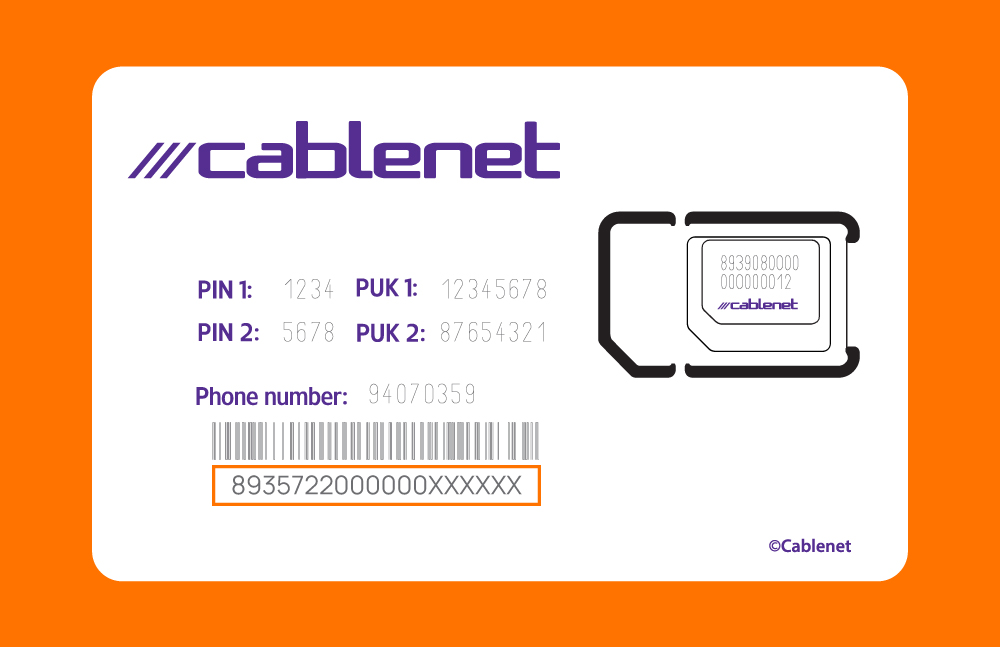
Please check if your mobile number is registered and activated. If you have not completed the number identification process yet, you can do so by clicking here. If you have completed it and still cannot link your number to the Cablenet.me app, please visit a Cablenet store or call us at 130 for assistance.
In order to activate your number, you have to complete the Prepaid Number Identification procedure. The process can be done either through our website or via the Cablenet.me app. Your line will then be activated, and you will be able to use your line for calls, SMS or Data, while in Cyprus or abroad. You will also be able to link it with the Cablenet.me app, top-up. activate an Always-On pass, top-up and/or transfer credit to another Cablenet prepaid subscriber.